Mullvad on Android TV devices
Data ostatniej aktualizacji:
This guide shows the user interface for the Mullvad VPN app on Android TV, and it contains information that applies specifically to this. For general information about the Mullvad VPN app for Android, see the following guide:
Devices
The Mullvad VPN app is available in the Google Play Store and it works on Android TV devices that are running Android 9 and newer.
While we have not tested all devices, some examples include Nvidia Shield TV, Google TV, Xiaomi TV and Smart TVs that run Android.
The Mullvad VPN app also works on Amazon Fire TV devices running Fire OS 7 or newer (which are based on Android 9+). Note that newer Fire TV devices running Amazon's Linux-based Vega OS are not supported. See Install Mullvad app on Android for Amazon Fire TV installation instructions.
Connection screen
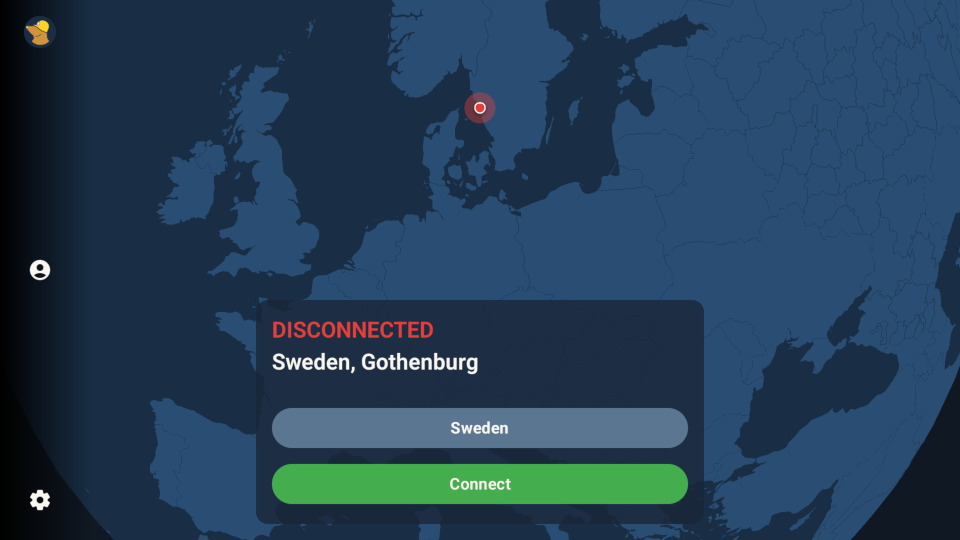
On the main connection screen you can find two buttons in the left side:
- The Account button in the middle.
- The Settings button in the bottom.
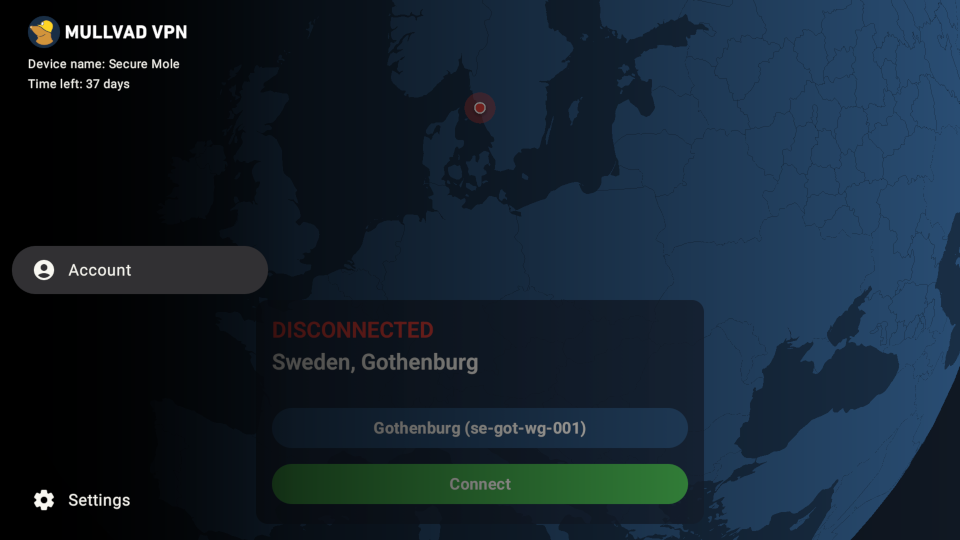
Side panel
Select one of the buttons in the left side to expand the panel and click it to go into Account or Settings.
Settings
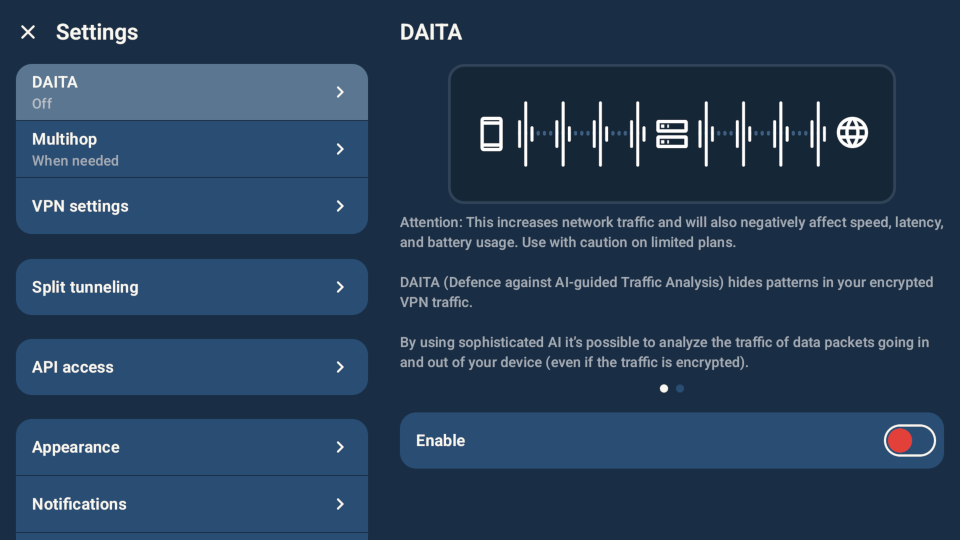
The main Settings screen contain the same settings as the Mullvad app for Android phones and tablets.
VPN settings
The VPN settings contain an Android TV specific Connect on device start-up setting. This replaces the Auto-connect & Lockdown mode that is in the Mullvad app for Android phones and tablets. Note that Lockdown mode is not supported on Android TV.
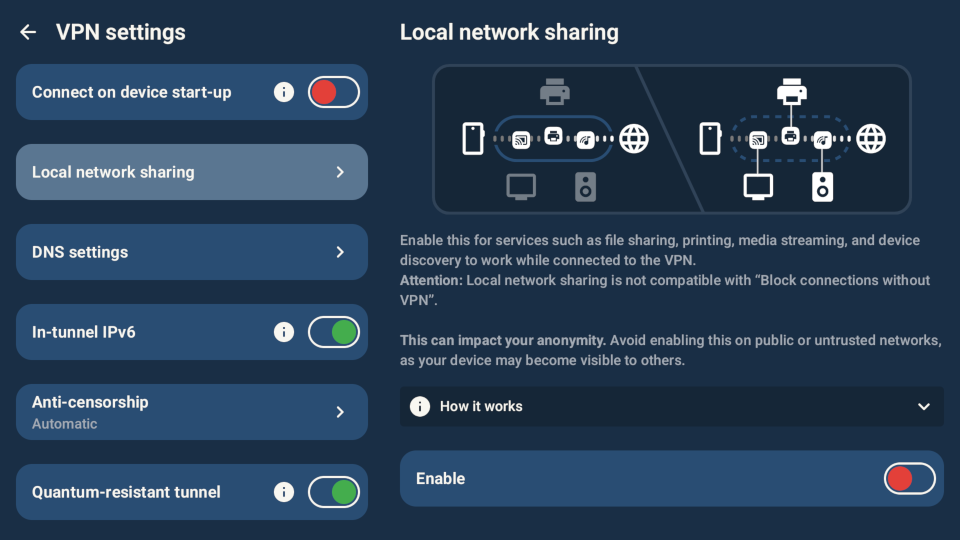
Connect on device start-up
This automatically starts the Mullvad VPN app and connects when the Android TV device starts up. Note the following:
- Connect one time before you use it and allow the connection request to grant the VPN permissions.
- This will only work when the device is restarted or after it is powered down completely. It does not work if the device is just waking up from sleep.
- It can take a minute or so for the Mullvad app to be informed by the system that it has booted.
- Make sure that the Mullvad app is installed on the internal storage by checking the storage information in the app details in the system settings.
If you want to know more
For information about other settings, see Using Mullvad VPN on Android.