Install Mullvad app on Windows
Mullvad app Windows Installation Desktop
آخرین بهروزرسانی:
This guide explains how to install and uninstall the Mullvad VPN app for Windows.
What this guide covers
- Installation requirements
- Install and start the Mullvad VPN app
- Unhide the Mullvad tray icon (Windows 11)
- (Optional) Disable Location in Windows
- Update the app
- Uninstall the app
- Troubleshooting - Mullvad Loader
- Troubleshooting - Mullvad app
- Failed to start the app
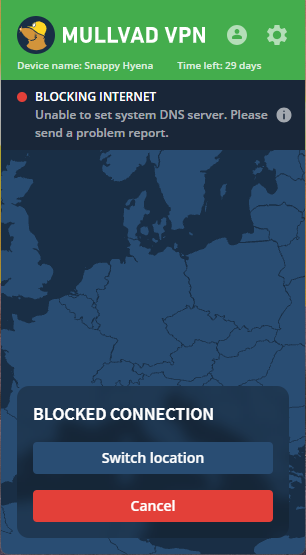
- Unable to set system DNS server
- Wi-Fi connection problem
- Incorrect virus detection in Uninstall Mullvad VPN.exe - Alternative installation method
Installation requirements
Windows 10 (64-bit/ARM) or newer.
Install and start the Mullvad VPN app
This applies to the Mullvad VPN loader. For the classical installer, see Alternative installation method.
-
Download the latest version from the Download page on our website.
-
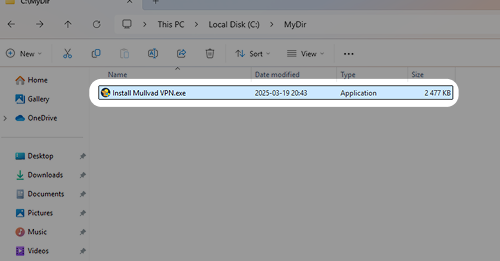
Navigate to the folder where the file "Install Mullvad VPN.exe" is and double-click it.
-
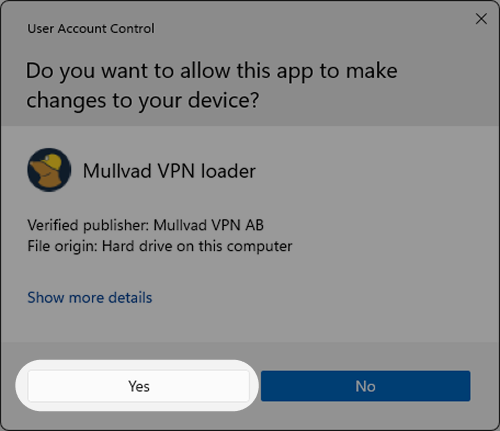
If you see a warning about allowing changes to your device, click Yes.
-
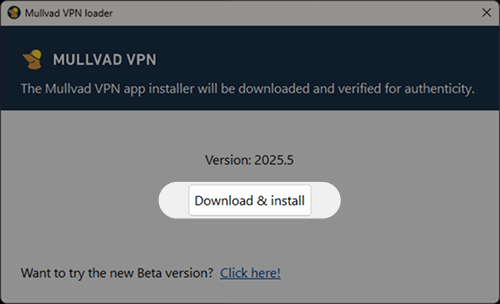
Click the Download & install button in the opened window. This will download and verify the Mullvad VPN app.
-
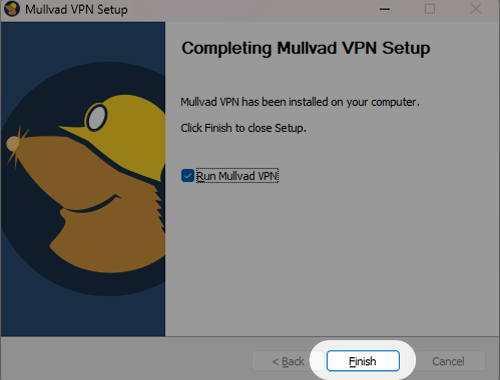
When the installation is complete, click on Finish to start the Mullvad VPN app.
Read more about how to use the Mullvad app in the guide Using the Mullvad VPN app.
Unhide the Mullvad tray icon (Windows 11)
To keep the Mullvad padlock icon visible in the Windows taskbar tray (near the clock), follow these steps:
- Click on the Up arrow in the system tray (or use the Windows key + b keyboard shortcut).
- Click-and-drag the Mullvad padlock icon down to the tray (on the right side of the Up arrow).
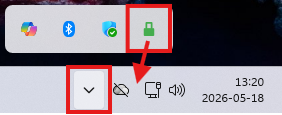
Alternatively:
- Right-click on the taskbar and select Taskbar settings.
- Click on Other system tray icons to show the hidden icons.
- Find the Mullvad VPN icon in the list and turn it on.
(Optional) Disable Location in Windows
To prevent apps from requesting your location using Wi-Fi or GPS you can turn off Location.
Windows 10:
- Open the Settings app.
- Click on Privacy.
- Click on Location in the left side.
- If it says "Location for this device is on", then click on Change and turn it off.
Windows 11:
- Open the Settings app.
- Click on Privacy & security in the left side.
- Click on Location.
- Turn off Let apps access your location.
- If you want you can turn off Location services, however note that "Find my device" etc will be unavailable (as Windows will warn you).
Update the app
For instructions about updating the app, see Using the Mullvad VPN app.
Uninstall the app
To uninstall the app from your computer, you'll need to access the Windows settings.
Windows 11
- Attention! Make sure that you have written down your Mullvad account number (if you have time left).
- Click on the Windows Start button.
- Click on the Settings icon in the left column. Click on Apps and then go to Installed apps.
- In the list of programs that appears, find Mullvad VPN and click on the "…" to the right of it.
- Click on the Uninstall button and confirm that you want to uninstall the app.
- Windows will proceed to uninstall the Mullvad VPN app and erase its local log files and cache. You'll also have the option to remove your settings.
- Click on OK once it's complete.
Note: If you get an error message that says "Error launching installer" then see Smart App Control in Windows 11.
Windows 10
- Attention! Make sure that you have written down your Mullvad account number (if you have time left).
- Click on the Windows Start button.
- Click on the Settings icon in the left column, click on Apps.
- In the list of programs that appears, find Mullvad VPN and click on it to select it.
- Click on the Uninstall button and confirm that you want to uninstall the app.
- Windows will proceed to uninstall the Mullvad VPN app and erase its local log files and cache. You'll also have the option to remove your settings.
- Click on OK once it's complete.
Troubleshooting - Mullvad Loader
If you have a third-party anti-virus, it could interfere with the Mullvad installer. Try to disable it while you install Mullvad.
Contents:
- Internet is blocked. Error: "Mullvad VPN cannot be closed".
- Error: "Failed to load version details"
- Error: "Download failed"
- Error: "Failed to verify download"
- Error: "Failed to uninstall a previous version"
Internet is blocked. Error: "Mullvad VPN cannot be closed".
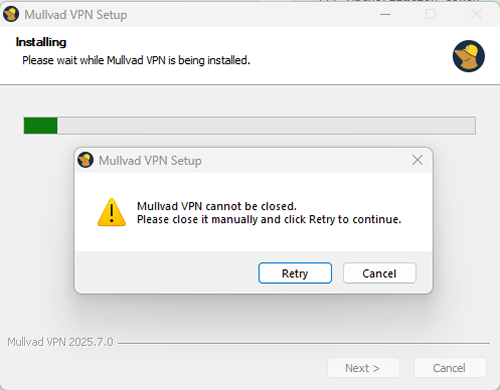
The installer can fail to update the app and blocks the Internet if the app fails to close properly during the installation. If this happens, do not close the Mullvad VPN client in Task Manager. Closing it can cause the Internet to remain blocked. Instead you can try these two options:
Using the loader
Run the loader again and if the installer was downloaded you can start the installer from here.
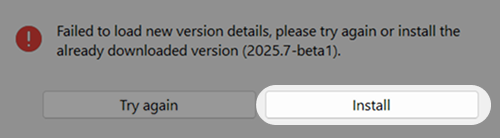
Using the downloaded installer
- Locate the installer. It should be located in one of the following folders (depending on which version you have of the loader):
C:\ProgramData\Mullvad VPN\cacheC:\Users\USERNAME\AppData\Local\Temp\mullvad-updates - Double-click the installer to open it.
- Follow the instructions for installing the update.
- Your app is now updated!
Internet is still blocked
If the Internet is still blocked after following the steps provided above under Error: "Mullvad VPN cannot be closed" and the app cannot be installed, you can try these options in order:
Restarting your computer
If Lockdown mode and/or Auto-connect were not enabled when trying to install the update you can reset the Mullvad firewall configurations by restarting your computer.
Using another device
You can use another device to re-install the app.
- On a different device, download the alternative installer from the Downloads page on our website, underneath the "Alternative installation" title. Not the loader! This is also available on our GitHub.
- Save the downloaded installer to a USB stick or other physical media.
- Transfer the installer to the PC that has Internet blocked.
- Start the installer by double-clicking it on the affected PC and follow the instructions to install the app.
Error: "Failed to load version details"
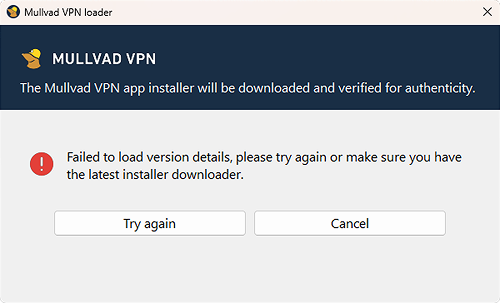
This usually happens because of network issues or trying to use an outdated version of the loader. If you have this problem then try the following:
- Click Try again.
- Restart the Mullvad VPN loader.
- Download a newer version of the loader from our website.
If none of these steps work, you can download the standalone installer by following these steps.
Error: "Download failed"
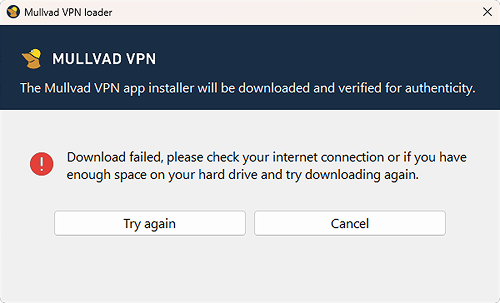
An error occurred during download, which could be due to network issues or not enough space on the hard drive. If you have this problem then try the following:
- Click Try again.
- Check if there is enough space on your hard drive, otherwise free up some space.
- Restart the Mullvad VPN loader.
If none of these steps work, you can download the standalone installer by following these steps.
Error: "Failed to verify download"
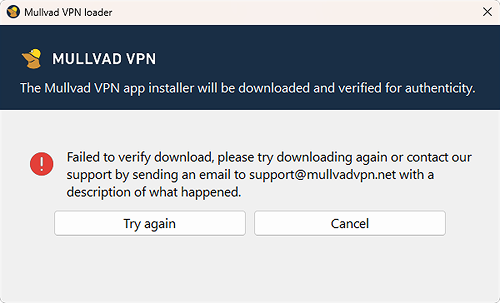
An error occurred during verification, this can happen because the file was corrupted during download. If you have this problem then try the following:
- Click Try again.
- Restart the Mullvad VPN loader.
If none of these steps work, please send an email to our support support@mullvadvpn.net with a description of what happened. You can also download the standalone installer by following these steps.
Error: "Failed to uninstall a previous version"
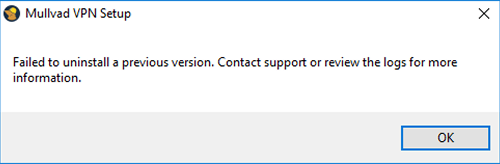
- Open the Services app in the Start menu and make sure that the "Mullvad VPN service" is stopped or not existing.
- Try to restart the computer and then install Mullvad VPN again.
- Third-party anti-virus software may also conflict with the installation process. Try uninstalling or disabling such software.
If it doesn't help then delete these two folders and then install Mullvad VPN: C:\ProgramData\Mullvad VPN C:\Program Files\Mullvad VPN
If you are unable to delete the folder in Program Files then open the Task Manager and end all Mullvad tasks. Then delete it.
Troubleshooting - Mullvad app
Contents:
Failed to start the app
After you start the Mullvad VPN app in Windows, it says:
Failed to start the app, please try again or click "Details" for more info
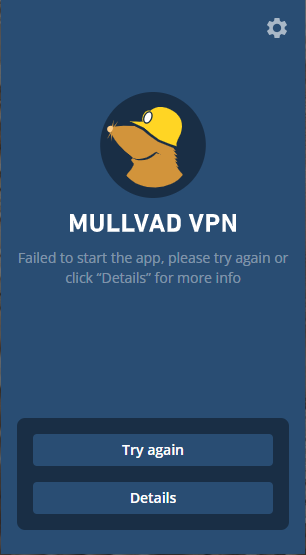
This means that the Mullvad VPN Service has not been able to start. Try to click on Try again.
If you are using a third party anti-virus or CCleaner then it may be that which stops the Mullvad service.
If it does not help to disable that then do the following:
- Uninstall any of the following apps that you may have installed:
Mozilla VPN
Amnezia VPN
Urban VPN
Radmin
Hamachi
Any third party anti-virus
Any third party firewall - If you uninstalled Mozilla VPN, then also open the Windows Defender Firewall > Advanced Settings and remove any inbound/outbound rules mentioning Mozilla VPN.
- Click on Try again in the Mullvad app, or restart the computer.
Unable to set system DNS server
Some apps like Spybot may add unwanted domains to the hosts file to block them. If that file becomes too large then it won't work with the Mullvad app. This limitation became more severe with the (July 2026) Windows 11 security update KB5101650. To fix it, follow these instructions to empty your host file:
- Open the Start menu and search for Notepad.
- Right-click on Notepad and choose Run as administrator.
- Click Yes in the User Account Control window.
- In Notepad, click File, then Open.
- Click on the file type drop-down in the bottom right and change it from "Text Documents" to All Files.
- Enter C:\Windows\System32\drivers\etc into the address bar in the top, or browse to it.
- Double-click on the file named hosts to open it.
- Select all the text (Ctrl+A) and delete it.
- Click on File > Save (or hit Ctrl+S).
Wi-Fi connection problem - "Your device is offline"
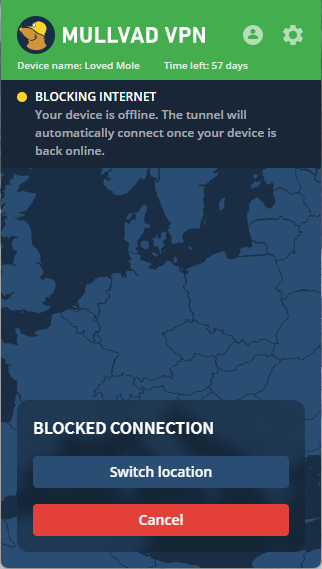
Did you experience that your Wi-Fi connects and disconnects, while the Mullvad app blocks the Internet and says that your device is offline? This may be caused by the (September 8) Windows 11 update KB5124008. To prevent this from happening you can add a key to the Registry which stops Windows from interfering with the Wi-Fi connection:
- Click on the Start menu and search for Command Prompt.
- Right-click on Command Prompt and select Run as administrator.
- Copy and paste the following command, then press Enter on your keyboard:
reg add "HKLM\SOFTWARE\Microsoft\WcmSvc" /v EnableBadStateTracking /t REG_DWORD /d 0 /f
Incorrect virus detection in Uninstall Mullvad VPN.exe
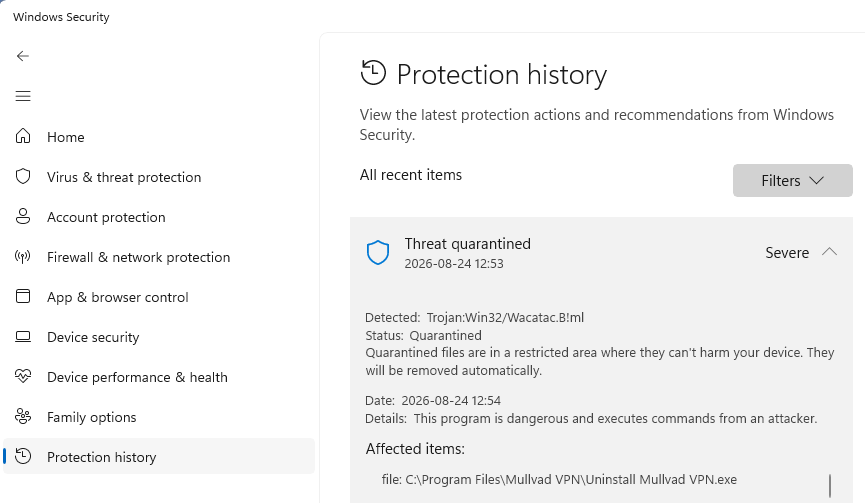
Some anti-virus vendors may incorrectly identify the Mullvad VPN uninstaller as a virus, malware or trojan. The file is located here:
C:\Program Files\Mullvad VPN\Uninstall Mullvad VPN.exe
This is more common when a new version of the Mullvad app has been released as the anti-virus definitions have not been updated yet. You can report the false positive to your anti-virus vendor.
If you are unable to restore the file from the quarantine then download the Mullvad VPN app again and install it with the anti-virus disabled.
- If it says "Failed to uninstall a previous version" then see the notes about this above.
- If it says "Failed to close conflicting processes" then see the instructions below to restore old-uninstaller.exe from the quarantine.
- If it gets blocked by Smart App Control then see the instructions below to turn that off.
Microsoft Defender Antivirus
If you have not installed a third party anti-virus then you are most likely using the built in Microsoft Defender Antivirus. Here are some instructions for that.
Start by making sure that Windows downloads the most recent anti-virus definitions.
- Open Windows Security in the Start Menu.
- Click on Virus & threat protection in the left side.
- Under Virus & threat protection updates, click Protection updates.
- Click on Check for updates.
If the Mullvad VPN uninstaller has been quarantined by Microsoft Defender Antivirus then follow the instructions below to restore it.
- Open Windows Security in the Start Menu.
- Click on Virus & threat protection in the left side.
- Click on Protection history.
- Click on Threat quarantined.
- Click on Yes in the User Account Control window.
- If you see "Uninstall Mullvad VPN.exe" then click on Actions and then Restore.
To whitelist Mullvad follow these instructions:
- Open Windows Security in the Start Menu.
- Click on Virus & threat protection in the left side.
- Under Virus & threat protection settings, click Manage settings.
- Scroll to the bottom and click on Add or remove exclusions.
- Click on Yes in the User Account Control window.
- Click + Add an exclusion and choose Folder.
- Navigate to C:\Program Files and select the Mullvad VPN folder.
- Click on the Select Folder button.
Note: This will not whitelist it in the TEMP folder where it will place a file when you run the uninstaller. You may have to restore that from quarantine.
If you still have a problem to install or uninstall Mullvad then turn off Microsoft Defender temporarily. We do not recommend turning it off permanently.
- Open Windows Security in the Start Menu.
- Click on Virus & threat protection in the left side.
- Under Virus & threat protection settings, click Manage settings.
- Switch Real-time protection off.
- Click on Yes in the User Account Control window.
Remember to turn Real-time protection back on again once your problem is resolved.
Smart App Control in Windows 11
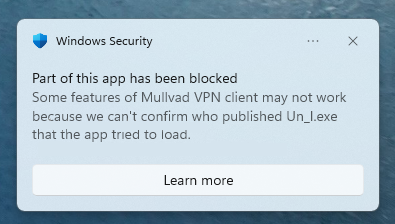
If you see a notification similar to this then follow the steps below to turn off Smart App Control.
- Open Windows Security in the Start Menu.
- Click on App & browser control in the left side.
- Click on Smart App Control settings.
- Click on Off.
Alternative installation method
If you are unable to download or use the Mullvad VPN loader, then you can download the Mullvad VPN installer directly.
- On the Downloads page, scroll down to "Alternative installation" and click on Download installer.
- Open the folder that you downloaded the installer to and double-click on MullvadVPN-xxxx.x.exe ("xxxx.x" is the version number).
- If you get a warning about allowing changes to your device, click Yes.
The Mullvad VPN installer is also available for download on GitHub. Download it there if you are unable to access our website.