WireGuard on a router
WireGuard Routers Installation Router OpenWrt
最近更新时间:
In this guide we will walk you through how to connect to Mullvad VPN on an OpenWrt router.
Some other routers have built in WireGuard support, but this guide only covers OpenWrt. However for other routers you can also download a WireGuard configuration file and import it to the router. This is possible on some routers from Asus, FRITZ! Box, GL.iNet and TP-Link for example.
If you are using pfsense then see our guide pfSense with WireGuard.
Keep in mind that we do not support obfuscation on routers. This means that you may not be able to connect on a router in some restrictive countries such as Russia or China. We recommend using the Mullvad VPN app instead.
What this guide covers
- Install OpenWrt on your router
- Install WireGuard
- Configure WireGuard
- Configure Firewall
- Verify the connection
- Additional optional settings
- DNS content blockers
- In-tunnel IPv6
- Changing servers
- Multihop - Troubleshooting
- DNS leaks
Install OpenWrt on your router
Using Mullvad on your router comes with some benefits:
- You can secure your whole network and all devices connected to the router.
- You can run Mullvad on more than five devices (all devices connected to the router).
- Via the router, you can even run Mullvad on devices that have no support for WireGuard.
- A router is designed for routing, naturally, and is not disturbed by other applications and settings like a computer might be.
First, verify that your router is included on OpenWrt's list of supported routers or check it with the Firmware selector. Then follow the Quick start guide for OpenWrt installation.
Take extra care in downloading the correct OpenWrt version for your router. Doing this incorrectly could "brick" your router, making it completely unusable.
Log in to the router
(OpenWrt version 25.12.5 has been used in this guide).
After you have installed the OpenWrt firmware, access your router with the LuCI web interface:
- Open a web browser and go to https://openwrt.lan or https://192.168.1.1.
- Firefox shows "Be careful. Something doesn't look right" or "Warning: Potential Security Risk Ahead".
- Chome/Edge shows "Your connection isn't private". - Click on Advanced.
- Click on Proceed or Accept the Risk and Continue (Firefox) or Continue (Chrome/Edge).
- Log in with username: root and no password.
Optional: Change IP on LAN interface
If you have other routers in the network that use the the same IP (192.168.1.1) then you can change the IP of the OpenWrt router so they don't conflict.
Skip this step if you have no other router/device using 192.168.1.1.
- Go to Network → Interfaces → lan → (click on the Edit button).
- Remove ❌ the IPv4 address and add for example
192.168.99.1/24. - Click on Save and then click on Save & Apply in the bottom.
- If you connected to https://192.168.1.1 in the web browser before then change it to https://192.168.99.1, or continue to use https://openwrt.lan.
Install WireGuard
- Go to System → Software.
- Click on Update lists....
- Click on Dismiss in the "Executing package manager" window.
- In the Filter field, search for luci-proto-wireguard and install it (this also includes the wireguard-tools and kmod-wireguard packages).
- Go to System → Reboot → Perform reboot.
Configure WireGuard
What you need in order to proceed:
- A router with a fresh installation of OpenWrt.
- A Mullvad account with active purchased time.
Download a configuration file
- Log in on Mullvad.net with your Mullvad account number.
- Go to the WireGuard configuration file generator.
- Choose your platform: Linux.
- Click on the Generate key button.
- Select a country.
- Select a city.
- Select a server.
- Configure Content Blocking: None.
- Click on Download file in the bottom.
Note: You can configure DNS content blocking and Multihop later. Make sure it works without it first.
Create the WireGuard interface
Proceed in the router web interface.
- Go to Network → Interfaces and click on the Add new interface... button.
- Set the following:
Name: WGINTERFACE
Protocol: WireGuard VPN
Note: If you don't see WireGuard then see Install WireGuard and reboot the router. - Click on Create interface.
Import the configuration file
Still under Network → Interfaces → WGINTERFACE → Edit:
- Click on the Load configuration... button.
- Paste or drag your WireGuard configuration file.
- Click on the Save button in the bottom right corner.
The result should be similar to this:
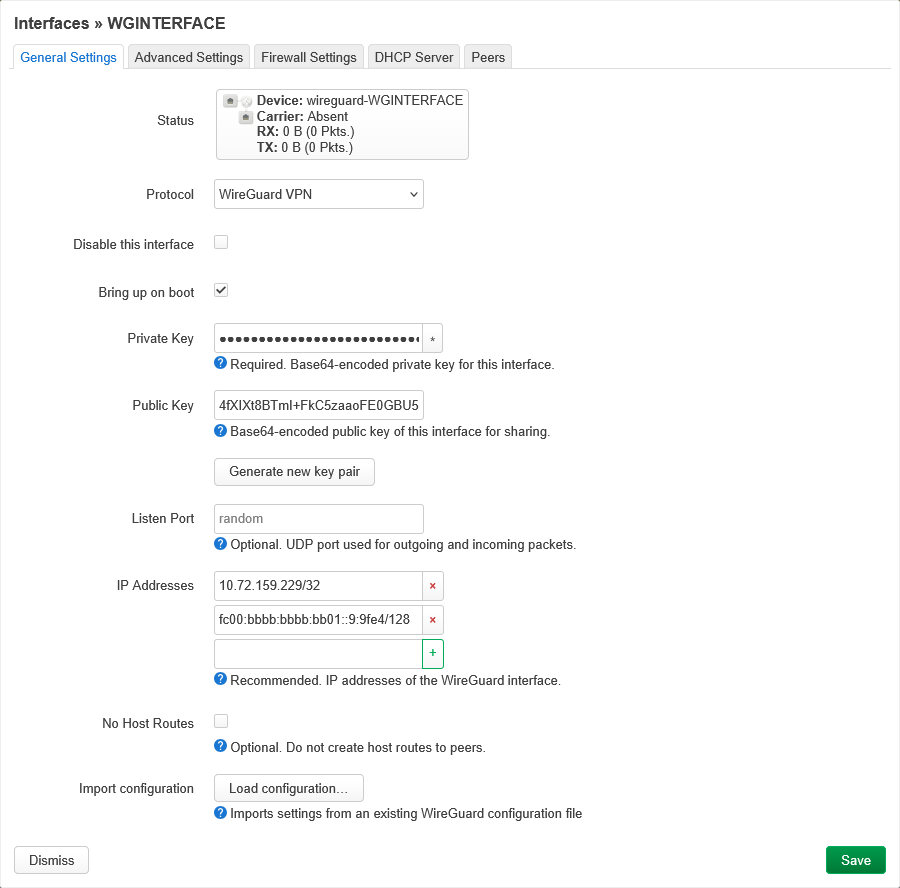
(Click on the picture to enlarge it).
Enable "Route Allowed IPs"
Still under Network → Interfaces:
- Click on the Edit button next to WGINTERFACE.
- Click on the Peers tab.
- Click on the Edit button.
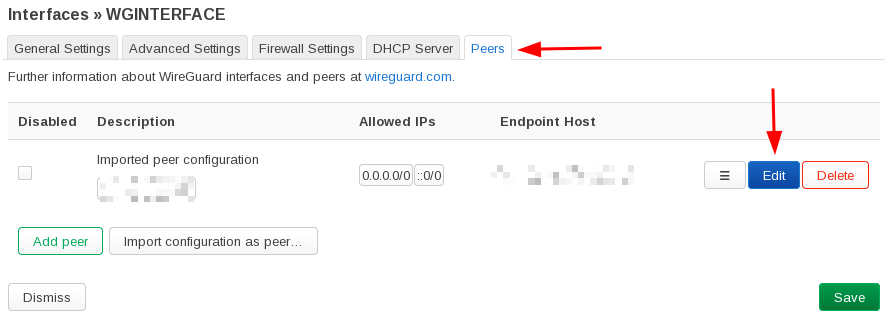
- Check ☑️ the Route Allowed IPs checkbox.
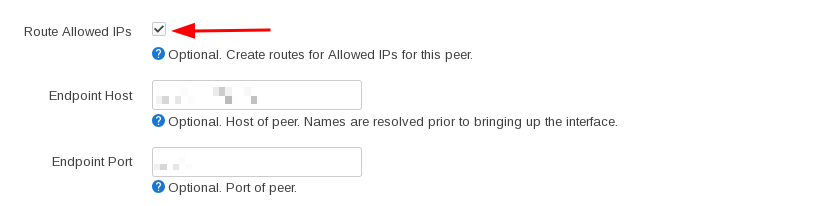
- Click on Save.
- Click on Save again.
- Click on Save & Apply in the bottom.
Disable "Use DNS servers advertised by peer"
Still under Network → Interfaces:
- Click on the Edit button next to WAN.
- Click on the Advanced Settings tab.
- Uncheck 🔲 Use DNS servers advertised by peer.
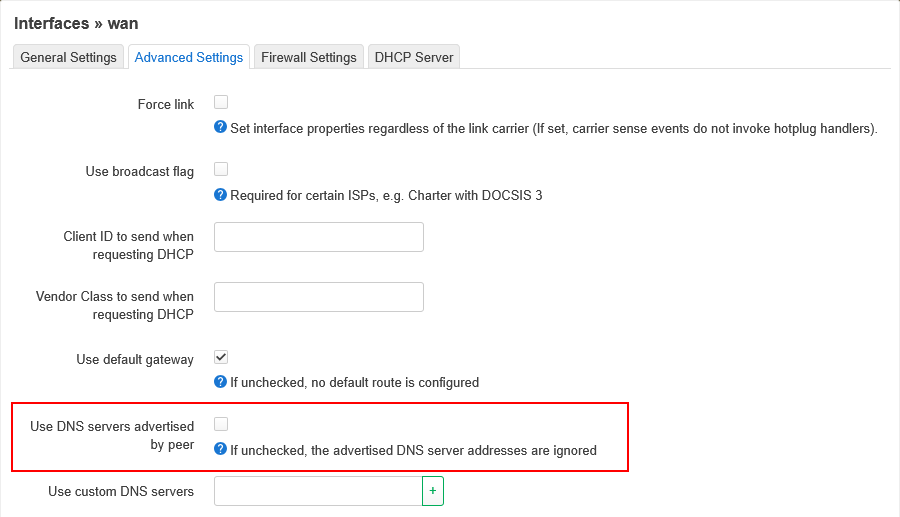
- Click on Save.
- Click on Save & Apply in the bottom.
Do the same for the WAN6 interface if your Internet provider supplies IPv6.
Note: If you get a DNS leak when you are done configuring Mullvad then see the Troubleshooting section.
Configure Firewall
Add new firewall zone
- Go to Network → Firewall.
- Click on the Add button under Zones.
- Set the following:
Name: WGZONE
Input: reject
Output: accept
Forward: reject
IPv4 Masquerading: Check ☑️
MSS clamping: Check ☑️
Covered networks: WGINTERFACE - Click on Save.
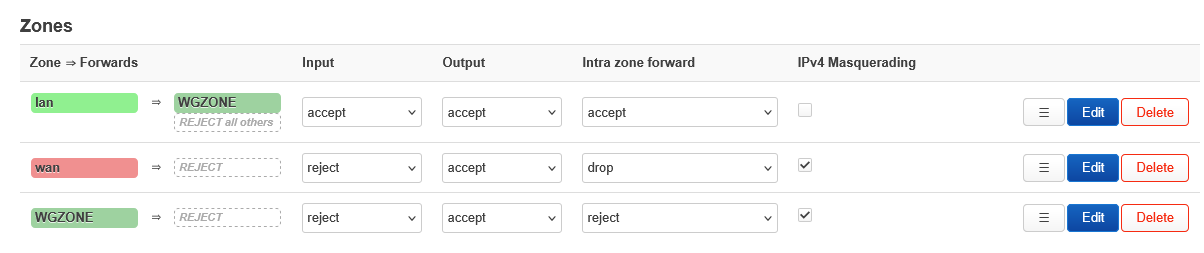
(Click on the picture to enlarge it).
Kill switch
- Click on the Edit button for the lan zone in the top.
- Set Allow forward to destination zones to WGZONE:WGINTERFACE as the only option under allowed destinations.

- Click on Save.
- Click on Save & Apply in the bottom.
- Go to System → Reboot → Perform reboot.
Verify the connection
The router and your devices that are connected to it should now be using Mullvad VPN.
If you just restarted the router it may take a minute until your devices can connect.
- Go to Status → WireGuard and make sure there is a handshake.
- Visit our Connection check and make sure that there are no leaks.
If there is a problem then see the Troubleshooting section.
Additional optional settings
DNS content blockers
The DNS content blockers have different internal IPs depending on which content blockers you want to use. For example:
- 100.64.0.7 - Ads + Trackers + Malware.
- 100.64.0.31 - Ads + Trackers + Malware + Gambling + Adult content.
- 100.64.0.63 - Ads + Trackers + Malware + Gambling + Adult content + Social media.
See the full list in our GitHub: Custom DNS entries for use with our VPN service.
Configure "Use custom DNS servers"
- Go to Network → Interfaces → WGINTERFACE → (click on the Edit button).
- Click on the Advanced Settings tab.
- Remove ❌
10.64.0.1from Use custom DNS servers. - Enter you chosen IP address in Use custom DNS servers, for example
100.64.0.7.
- Click on Save.
- Click on Save & Apply.
Fix for CGNAT (100.64.0.0/10)
Some Internet providers like Starlink use CGNAT which uses the same IP range (100.64.0.0/10) as our DNS content blockers. In this case the DNS content blocking IP may not work by default. You can add a static route to make sure that your selected DNS content blocking IP is using the VPN tunnel:
- Go to Network → Routing → Static IPv4 Routes.
- Click on the Add button.
- Set the following:
Interface: WGINTERFACE
Route type: unicast
Target:100.64.0.7/32(use the same DNS content blocking IP that you set in Use custom DNS servers above). - Click on Save.
- Click on Save & Apply.
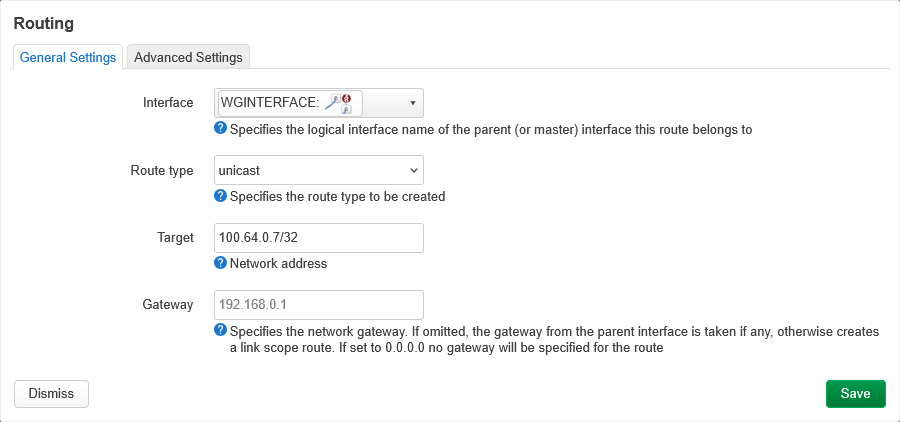
(Click on the picture to enlarge it).
Testing the DNS content blocking
- Open a web browser with no adblocking extension installed.
- Visit the TurtleCute Ad Blocker Test and make sure it gets over 90% green.
- Copy one of the domains from the Ad Blocker Test page, for example
ad.doubleclick.net. - Open the Command Prompt in Windows or the Terminal in Linux or macOS.
- Run
nslookup ad.doubleclick.netand make sure that it responds with "can't find ad.doubleclick.net".
For reference, see blocklists we use.
In-tunnel IPv6
IPv6 through the VPN won't work on your network devices by default since they won't be assigned IPv6 addresses from the VPN. Mullvad provides a single (/128) IPv6 address for the router, not a /64 subnet prefix for your network devices. However you can use NAT66 to translate the local IPv6 network traffic into the single Mullvad IPv6 address. Follow these instructions.
1) Firewall
- Go to Network → Firewall → WGZONE → (click on the Edit button).
- Click on the Advanced Settings tab.
- Check ☑️ IPv6 Masquerading.
- Click on Save.
- Click on Save & Apply.
2) Disable GUA prefix
- Go to Network → Interfaces → LAN → (click on the Edit button)
- Click on the Advanced Settings tab.
- In the IPv6 prefix filter drop-down menu, select local (Local ULA).
- Click on Save.
- Click on Save & Apply.
3) Announce IPv6 default route
- Go to Network → Interfaces → LAN → (click on the Edit button)
- Click on the DHCP Server tab.
- Click on the IPv6 RA Settings tab.
- In the Default router drop-down menu, select on available prefix.
- Click on Save.
- Click on Save & Apply.
Verify the IPv6 connection
- Go to our Connection check and click on Using Mullvad VPN and verify that it shows an IPv6 address.
- Make sure that you can visit Google's IPv6 search page and ipv6.icanhazip.com.
Note: IPv4 will be used by default since it takes precedence over the IPv6 ULA address from the router. This means that IPv4 will be used for dual-stack websites that have both both IPv6 and IPv4 addresses. One way to use IPv6 by default is to use our SOCKS5 proxy instead. Another way is to change the ULA address to an unassigned prefix as documented in the IPv6 extras under "Using IPv6 by default". A third way is to change the prefix policy in the client operating system, so the ULA prefix takes precedence. The final IPv4/IPv6 protocol selection may also depend on the Happy Eyeballs algorithm.
Also note that our DNS won't query DNS nameservers that are reachable only over IPv6.
OpenWrt IPv6 documentation
For reference and additional options, see the documentation here:
IPv6 using SOCKS5
Another way to get IPv6 on your network clients is to use our SOCKS5 proxy on the clients to allow them to use the IPv6 exit IP from the proxy.
IPv6 leak
If you have an IPv6 Internet address from your Internet provider that leaks in our Connection check then verify that Allowed IPs includes IPv6:
- Go to Network → Interfaces → WGINTERFACE → (click on the Edit button).
- Click on the Peers tab.
- Click on the Edit button.
- Make sure that Allowed IPs has one field with 0.0.0.0/0 and one field with ::0/0.
Changing servers
If you want to change the WireGuard server you are connecting to then you can either change it manually, or import a new configuration file.
This shows how to change a single server. For Multihop, see the Multihop section.
Changing servers manually
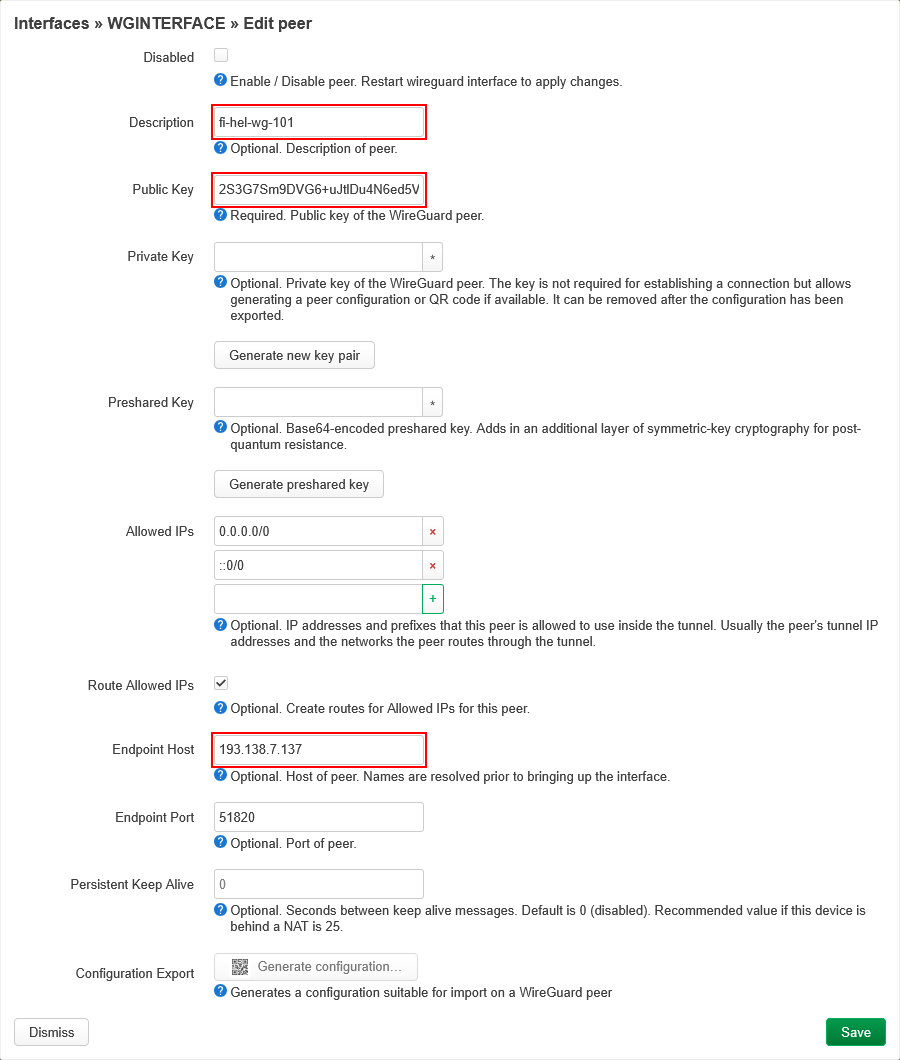
- Go to Network → Interfaces → WGINTERFACE → (click on the Edit button).
- Click on the Peers tab.
- Click on the Edit button.
- Change the following:
Description: Enter the name of the server.
Public key: Enter the public key from the Servers list.
Endpoint host: Enter the IP address from the Servers list.
---
- Click on Save and then Save & Apply.
- Click on the Restart button next to WGINTERFACE.
- Test the connection with the Connection check.
Changing servers using "Load configuration"
When you generate a WireGuard key in the WireGuard configuration file generator then the private key is deleted as soon as you leave the page as we only store the public key.
If you have not left the page yet while following the steps to Download a configuration file in this guide then you can just select a new country/city/server and download a configuration file with the same key that you have on the router already.
However if you do not still have the WireGuard configuration file generator open then you either have to generate a new key (and remove the old device), or follow the instructions below to import the private key from your previous configuration file that you imported to the router (if you still have it).
Reusing an existing WireGuard key
- Log in on Mullvad.net with your Mullvad account number.
- Go to the WireGuard configuration file generator.
- Choose your platform: Linux.
- Open the previous configuration file in a text editor and copy the PrivateKey.
- Paste the PrivateKey in the field that says "Enter private key".
- Click on the Import key button.
- If it says "Invalid key" then make sure you copied the whole key including the final "=".
- If it says "Unable to import key" then the corresponding public key (device) does not exist in the Mullvad account that you are logged in with. - If you imported a correct PrivateKey then the corresponding PublicKey will be highlighted under "Manage WireGuard keys". Remember, Mullvad does not store your PrivateKey, only your PublicKey.
- Select a country.
- Select a city.
- Select a server.
- Configure Content Blocking: None (or your choices, if you tested it already).
- Click on Download file in the bottom.
Proceed in the router web interface:
- Go to Network → Interfaces → WGINTERFACE → (click on the Edit button).
- Click on the Load configuration... button.
- Paste or drag your WireGuard configuration file.
- Click on OK if it asks to overwrite the current settings.
- Click on the Peers tab.
- Click on the Delete button next to the previous server you used.
- Click on the Edit button next to the new server.
- Check ☑️ the Route Allowed IPs checkbox.
- Click on Save and then Save again.
- Click on Save & Apply.
- Click on the Restart button next to WGINTERFACE.
- Test the connection with the Connection check.
Multihop
With WireGuard you can make use of Multihop, which routes your Internet traffic through an entry server to an exit server, instead of using only using an exit server.
All of our WireGuard servers are connected to all other WireGuard servers via WireGuard tunnels.
Privacy note: Unlike when using Multihop in the Mullvad VPN app, the Endpoint Port can reveal to entry server traffic observers which server you are Multihopping to.
Configuring Multihop servers manually
Start by configuring Mullvad with a single hop using the instructions above in this guide. Then change one setting (for the Entry) or two settings (for the Exit) of the settings below.
Note: When you configure Multihop for the first time you can not only change the Entry server, you have to change the Exit server too or else the key won't match. However you can change the Exit server only if you want.
- Go to Network → Interfaces, click on the Edit button next to WGINTERFACE.
- Click on the Peers tab.
- Click on the Edit button.
- Change the following Entry server and/or Exit server settings.
Entry server
- Endpoint Host ("IPv4")
Exit server
- Endpoint Port ("Multihop port")
- Public Key
This information is available in our Servers list.
Entry server in the example below:
Exit server in the example below:
Example: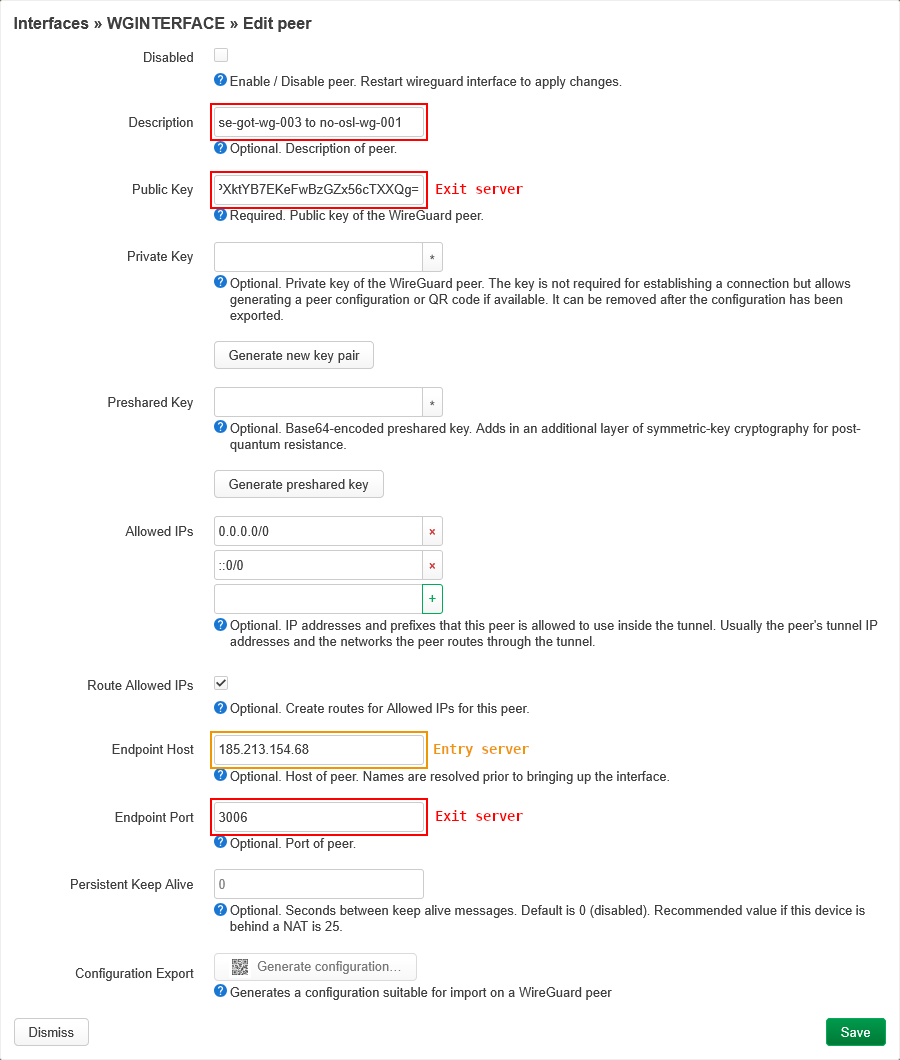
- Click on Save and then Save again and then Save & Apply.
- Click on the Restart button next to WGINTERFACE.
- Test the connection with the Connection check.
Note: The Connection check will only show the Exit server. If you want to determine that Multihop works you can test latency and speed with and without Multihop.
To recap:
- Decide which Entry server you want to use and set the Endpoint Host to that IP address.
- Decide which Exit server you want to use and set the Endpoint Port and Public Key to that.
Configuring Multihop servers using "Load configuration"
See the instructions above for a changing a single server using Load configuration. After you select an Exit server (before downloading the file) do this in the WireGuard configuration file generator:
- Click on Advanced settings to expand it.
- Check ☑️ Enable under Multihop.
- For the Entry server:
Select a country.
Select a city.
Select a server. - Configure Content Blocking: None (or any if you tested it already).
- Click on Download file in the bottom.
Then read the instructions under Proceed in the router web interface.
Multihop using SOCKS5
In addition to WireGuard Multihop you can Multihop using our SOCKS5 proxies on the WireGuard servers. See our WireGuard SOCKS5 guide or the SOCKS5 proxy guide to learn how to use a SOCKS5 proxy in a web browser. You can find the SOCKS5 proxy hostnames in our Servers list, for example se-got-wg-socks5-001.relays.mullvad.net.
To be able to use the SOCKS5 proxy hostnames they must be possible to resolve into our internal IP addresses.
- Go to Network → DNS.
- Click on the Filter tab.
- Enter mullvad.net in the Domain whitelist field.
- Click on Save & Apply.
- Open the Command Prompt in Windows or the Terminal in Linux or macOS.
- Run
nslookup se-got-wg-socks5-001.relays.mullvad.netand make sure that it shows the IP address 10.124.0.20.
Troubleshooting
See possible solutions to problems below. If you need help then email support@mullvadvpn.net. Let us know the problem and which country are you located in (relevant in case of censorship) and which server you are using. Attach some screenshots if you want us to check your configuration.
Unable to connect to the VPN (Internet blocked)
If you were never able to connect, or if WireGuard stopped working then read this.
Things to do on the router:
- Go to System → Reboot → Perform reboot.
- Go to Network → Firewall and make sure that you set the kill switch correctly.
- Go to Status → WireGuard and see if there is a recent handshake and if data is received.
- Go to Network → Diagnostics and see if Ping and Nslookup works from the router itself.
- Go to Status → System Log and check in the bottom if there are any relevant errors.
Things to do with Mullvad:
- Log in to our website and make sure that you have time left on the Mullvad account that you were logged in with when you downloaded the WireGuard configuration file.
- Check that your WireGuard public key still exists under My devices on our website.
- See if the WireGuard server you are trying to connect to works in the WireGuard app or the Mullvad VPN app in your network, without using any Anti-censorship obfuscation.
If this does not solve the problem then try to reset the router (System → Backup / Flash Firmware → Perform reset) and start over again.
Some websites don't load on some devices (MTU)
- Go to Network → Interfaces → WGINTERFACE → (click on the Edit button).
- Click on the Advanced Settings tab.
- Type 1280 in the MTU field.
- Click on Save.
- Click on Save & Apply.
Note: Don't set the MTU lower than to 1280 if you are connecting with IPv6 to the WireGuard server.
DNS leaks
First verify that the DNS leak is not caused by something on your device, see How to prevent DNS leaks.
Make sure to turn off Wi-Fi on your device if you are connected to the OpenWrt router with an Ethernet cable. Otherwise if you are connected to a Wi-Fi from another router, then your operating system may leak DNS queries through that.
If the router is leaking the DNS servers from your Internet provider then try to change some of the following settings.
WAN settings
This is included in the instructions above.
- Network → Interfaces → WAN (click Edit) → Advanced Settings → Use DNS servers advertised by peer: Uncheck 🔲.
- Network → Interfaces → WAN6 (click Edit) → Advanced Settings → Use DNS servers advertised by peer: Uncheck 🔲.
Remember to click on Save & Apply in the bottom after changing the settings.
DNS settings
- Network → DNS → Forwards (tab) → DNS Forwards:
10.64.0.1.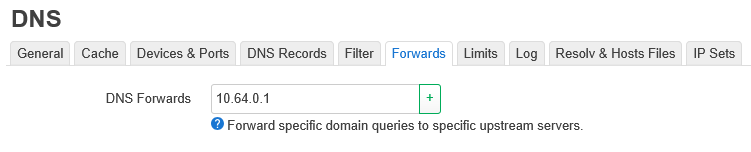
- Network → DNS → Resolv & Hosts Files (tab) → Strict order: Check ☑️.
Remember to click on Save & Apply in the bottom after changing the settings.
DHCP server settings
- Network → Interfaces → LAN (click Edit) → DHCP Server (tab) → IPv6 Settings (tab) → RA-Service: "disabled" (do not change it if you set up In-tunnel IPv6).
- Network → Interfaces → LAN (click Edit) → DHCP Server (tab) → General Setup (tab) → Force: Check ☑️ ("Force DHCP on this network even if another server is detected").
Remember to click on Save & Apply in the bottom after changing the settings.
"WireGuard" is a registered trademark of Jason A. Donenfeld.