API access with the Mullvad app
Mullvad app Connectivity Bridges Windows Linux macOS Desktop iOS Shadowsocks Feature Censorship circumvention
Son güncelleme:
This guide describes all the different API access methods in the Mullvad VPN app for Windows, Linux, macOS and iOS.
This feature is made for users who are otherwise unable to connect to the Mullvad API, which is needed to log in to the Mullvad app, update the account time, validate the device and download the latest server list etc.
The Mullvad API may be blocked by a security app that you have installed, a setting in your router, a firewall in the network you are connected to, or your Internet provider. This is common in some restrictive locations.
What this guide covers
- 2. SOCKS5 remote
- 2A) Remote SOCKS5 servers
- 2B) Mullvad apisocks5 client
- 2C) Mullvad SSH bridge servers (remote)
- 2D) Tor network
- 3. SOCKS5 local
- When to use SOCKS5 local
- 3A) Mullvad SSH bridge servers (local)
- Other obfuscation protocols
Where to find API access
The API access setting was added in Mullvad version 2024.1 for Windows, Linux, macOS and iOS.
Go to the Mullvad app settings by clicking on the gear icon in the top right corner. Then click on API access.
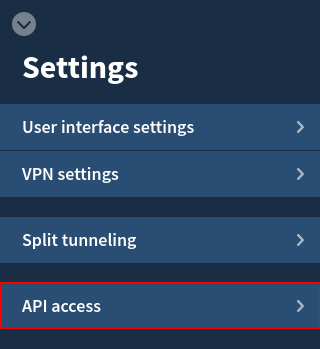
The screenshots in this guide are taken from the desktop app. It looks a bit different in iOS.
API access settings
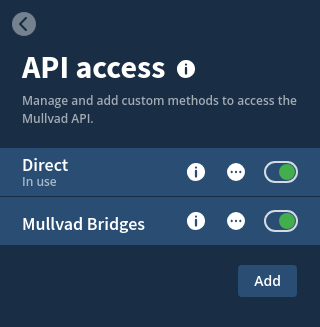
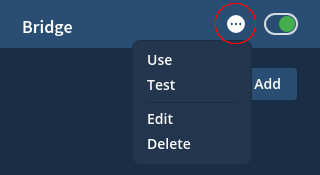
The Mullvad app has two default methods to access the API. To test the methods you can click on the round buttons with three dots and then Test. If it works then an API reachable message shows temporarily beneath the method. If this does not work for you then you may want to disable this method so the app doesn't have to try using it.
The method that is currently used by the app shows In use beneath it. To instruct the app to use another method, click on the round button with three dots and then Use.
After you add a new method you can click on the round button to set it to be in Use, Test it, Edit it or Delete it.
Direct
When Direct is enabled then the app can try to connect directly to the IP-address of the API server.
Mullvad Bridges
When Mullvad Bridges is enabled then the app can try to connect to the API server via one of our Shadowsocks bridge servers.
Adding custom methods
Click on Add to configure another API access method. There are three different types:
1: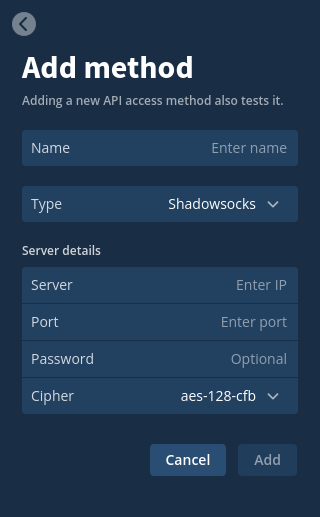 2:
2: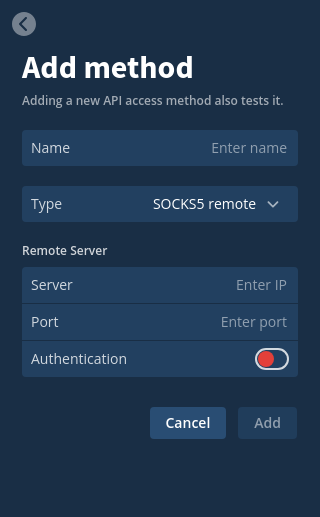 3:
3: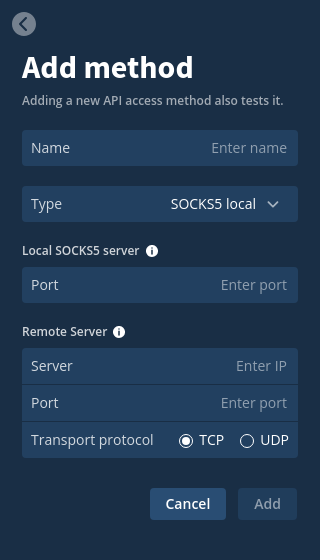
1. Shadowsocks
This section includes:
1A) Remote Shadowsocks servers
Users who have their own remote server or VPS (Virtual Private Server) in a network that is not blocking the Mullvad API can install a Shadowsocks server on it. This can then be added as an API access method in the Mullvad app, and it could also be shared with other Mullvad users who are unable to access the Mullvad API. Note that if the Shadowsocks server is connected to Mullvad VPN then it has to use split tunneling since we do not support port forwarding, so the Mullvad IP can not be used.
There are different versions of Shadowsocks available, and often several ways to install them. For example you can install shadowsocks-rust using Snap. To configure it, read the Getting Started instructions.
1B) Mullvad Shadowsocks bridge servers
If you have enabled Mullvad Bridges in the API access settings then the app will try to connect randomly to some of our Shadowsocks bridge servers. If you want to try to use a specific one then you can add it as a custom method.
- Find the bridge server you want to use in our Servers list and note the IP address.
- Click on Add in the API access settings.
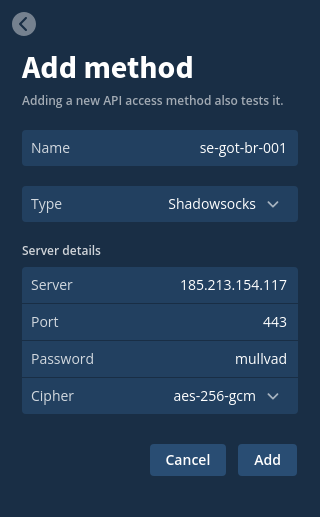
- Enter the following settings:
Name: Type in (for example) the name of the bridge server.
Type: Shadowsocks
Server: Enter the IP from the Servers list.
Port: Enter 443, 1234 or 1236.
Password: Enter mullvad
Cipher: Select aes-256-gcm - Click on Add.
2. SOCKS5 remote
This section includes:
- 2A) Remote SOCKS5 servers
- 2B) Mullvad apisocks5 client
- 2C) Mullvad SSH bridge servers (remote)
- 2D) Tor network
2A) Remote SOCKS5 servers
As with the Shadowsocks method, users can install their own remote SOCKS5 server and use it with the API Access in the Mullvad app. You can for example use Dante which is a free SOCKS server which also supports username and password authentication. Refer to the official documentation or a third party guide.
2B) Mullvad apisocks5 client
You can download our apisocks5 client to a computer that is unable to access the Mullvad API. For information about how to download, verify and use it, see our guide Mullvad apisocks5 utility.
The client attempts to make a connection to the API via other proxies that we provide. You can then add this as a method in the API Access settings.
Before you start, turn off Lockdown mode if you have enabled that in the Mullvad app settings > VPN settings (on Windows or Linux).
Move the apisocks5 client to a system directory for binaries. For example:
- Linux: /usr/local/sbin
- macOS: /usr/local/bin
- Windows: C:\Program Files\Mullvad VPN\resources\
1. Start the apisocks5 client in the Terminal (Linux, macOS) or Command Prompt (Windows):
Windows: apisocks5 -verbose
Linux: /opt/Mullvad\ VPN/resources/apisocks5 -verbose
macOS: /Applications/Mullvad\ VPN.app/Contents/Resources/apisocks5 --verbose
Note about macOS:
The first time you start it you have to right-click on the apisocks5 file and select Open. Otherwise you will get an error that says that apisocks5 "cannot be opened because the developer cannot be verified".
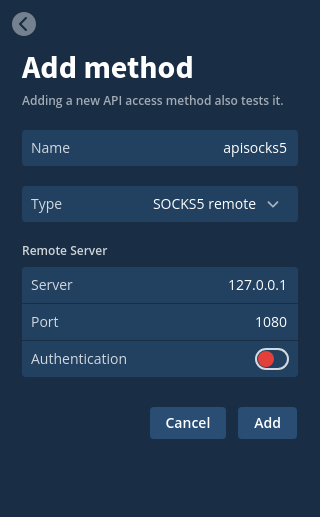
2. Go to the API access settings, click on Add and enter the following settings. Then click on Save.
- Name: apisocks5
- Type: SOCKS5 remote
- Server: 127.0.0.1
- Port: 1080
- Authentication: Off
For more information, see our guide Mullvad apisocks5 utility.
2C) Mullvad SSH bridge servers (remote)
You can use SSH tunneling to try to connect to the Mullvad API via one of our bridge servers. SSH will at the same time create a local SOCKS5 proxy that you can add to the API access settings in the Mullvad app.
If you are using the Mullvad app for macOS, which does not support split tunneling, then you would have to turn off Lockdown mode, if you have enabled that in the Mullvad app settings. However a better solution is to set this up with the SOCKS5 local type instead.
Here follows an example for Linux. If you are using Windows then you can find instructions in our guide SSH and Mullvad VPN.
mullvad-exclude ssh -f -N -D 1234 mullvad@185.213.154.117
Type yes to accept the fingerprint and then enter mullvad as the password.
You can then add it to the API access settings.
- Name: SSH tunnel
- Type: SOCKS5 remote
- Server: 127.0.0.1
- Port: 1234
- Authentication: Off
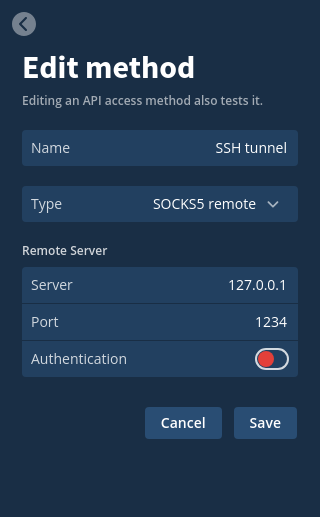
Click on Save. If you get a message saying that the API is unreachable then you can try to connect to another bridge server. First stop the currently running ssh process using the command killall ssh. Then change the IP address (185.213.154.117) in the command above and run it again.
2D) Tor network
If you are able to connect to Tor then you can run that as a service and use its SOCKS proxy on port 9050 with the API Access settings.
Note that you have to turn off Lockdown mode for this to work, if you have enabled that in the Mullvad app settings.
Here is an example for Linux:
- Install Tor using the Terminal:
Fedora:sudo dnf install tor
Debian/Ubuntu:sudo apt install tor - Enable and start the tor service daemon:
sudo systemctl enable --now tor
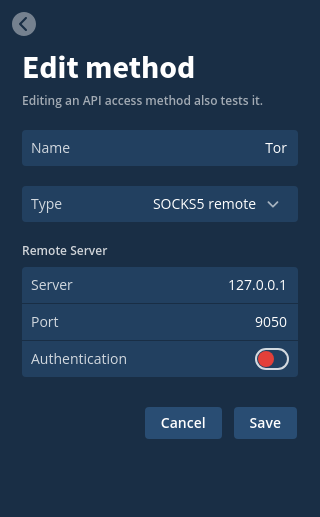
You can then add it to the API access settings.
- Name: Tor
- Type: SOCKS5 remote
- Server: 127.0.0.1
- Port: 9050
- Authentication: Off
3. SOCKS5 local
This section includes:
When to use SOCKS5 local
Here is the difference between SOCKS5 remote and SOCKS5 local:
- SOCKS5 local: this has a Remote Server setting which opens access to the remote server in the Mullvad app firewall, so it can be used even if you have enabled Lockdown mode in the Mullvad app settings. This way you can use it without split tunneling, which is unavailable on macOS.
- SOCKS5 remote: If you use a local SOCKS5 proxy (using 127.0.0.1) with SOCKS5 remote then it requires Split tunneling if Lockdown mode is enabled in the Mullvad app settings.
So to recap, use SOCKS5 local when all of this is true:
- You want to enable Lockdown mode.
- No split tunneling: You are either using macOS which does not have split tunneling, or you don't want to use split tunneling.
3A) Mullvad SSH bridge servers (local)
You can use SSH tunneling to try to connect to the Mullvad API via one of our bridge servers. SSH will at the same time create a local SOCKS5 proxy that you can add to the API access settings in the Mullvad app. Follow these instructions:
1. In the API access settings, make sure to disable Mullvad Bridges by clicking on the green radio button.
2. Click on Add and enter the following settings.
Note: This is using the IP address for se-got-br-001, but you can use any Mullvad bridge server.
- Name: SSH tunnel
- Type: SOCKS5 local
- Port: 1234
- Server: 185.213.154.117
- Port: 22
- Transport protocol: TCP
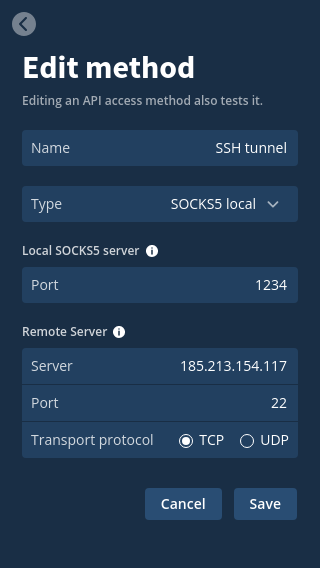
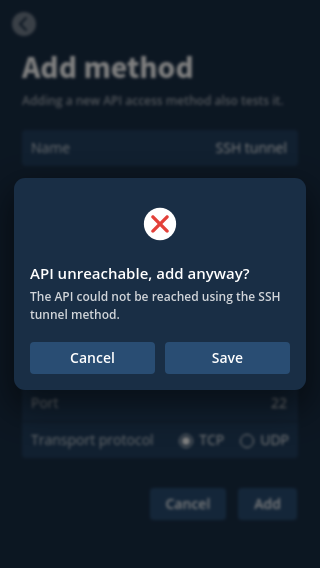
3. Click on Save. You will now get a warning message:
"API unreachable, add anyway? The API could not be reached using the SSH tunnel method".
This is normal since the SSH tunnel is not started yet. It can not be started before this step since this step is what opens the Mullvad Lockdown firewall for the server that you entered.
4. Click on Save in the warning message.
5. In the API access settings, disable Direct.
6. Open the Terminal in Linux or macOS and use the following command:
ssh -f -N -D 1234 mullvad@185.213.154.117
Type yes to accept the fingerprint and then enter mullvad as the password.
7. Click on the round button with three dots next to the SSH tunnel method that you added. Then click on Test. You will see a temporary message under the method which should say "API reachable" if the connection succeeded. The message will then disappear.
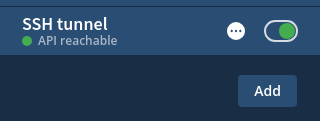
If it did not work then you can try to connect to another bridge server. First stop the currently running ssh process using the command killall ssh. Remember to change the IP address (185.213.154.117) in both the SSH tunnel method that you added, and in the command above and run it again.
If you are using Windows then you can find instructions in our guide SSH and Mullvad VPN. You do not need to follow the Split tunneling instructions.
Other obfuscation protocols
Keep in mind that you can use any obfuscation protocol that has a tunnel client with SOCKS5 proxy support. The client on your computer connects to the obfuscation server, and the Mullvad VPN app then sends the API traffic through it via the local SOCKS5 proxy. The Remote Server settings in the SOCKS5 local API Access method simply opens the Mullvad Lockdown firewall, it is not a tunnel client itself.
We also have proxies that uses v2ray and xtls that you can use.