SOCKS5 proxy
Connectivity Windows Linux macOS Desktop Feature
Sist oppdatert:
This guide describes how you can use the SOCKS5 proxy on the WireGuard servers when connected to Mullvad VPN.
What this guide covers
- Overview
- Why the proxy is beneficial
- How the proxy works
- Using the SOCKS5 proxy
- Firefox (for PC and Mac)
- Firefox (for Android)
- Chrome / Brave (for Windows)
- Edge (Windows 10/11)
- Safari / Chrome / Edge / Brave (for macOS) - Testing the connection
- Multihop with SOCKS5
Overview
The SOCKS5 proxy is listening on 10.64.0.1 port 1080.
Why the proxy is beneficial
Reduced CAPTCHAs
Some websites require that you solve a CAPTCHA puzzle when they detect traffic that originates from a VPN server. The amount of CAPTCHAs you will get is often reduced when using the SOCKS5 proxy.
Static IPv6 / IPv4 addresses
Each Mullvad server can have multiple exit IPs, but if you use the SOCKS5 proxy on the server then you will always get the same IP-address - that of the proxy. This can be useful if you need to whitelist your Mullvad IP somewhere. The proxy provides you with an IPv6 address and an IPv4 address. You can find them on our Connection Check page.
How the proxy works
The SOCKS5 protocol itself does not include encryption, however with our implementation your traffic is always encrypted. This is because we establish the proxy connection inside an encrypted tunnel. You can read more about this in our guide Different entry/exit node using WireGuard and SOCKS5 proxy.
Keep in mind that if you disconnect Mullvad then you can not reach our SOCKS5 proxy. Apps which you have added the proxy to may appear to be blocking Internet access.
Using the SOCKS5 proxy
Follow these steps to configure your web browser to use our SOCKS5 proxies.
Firefox (for PC and Mac)
- In Firefox, click the menu button in the top right corner and choose Settings.
- In the search box, type “network”, then click on the Settings... button in the result.
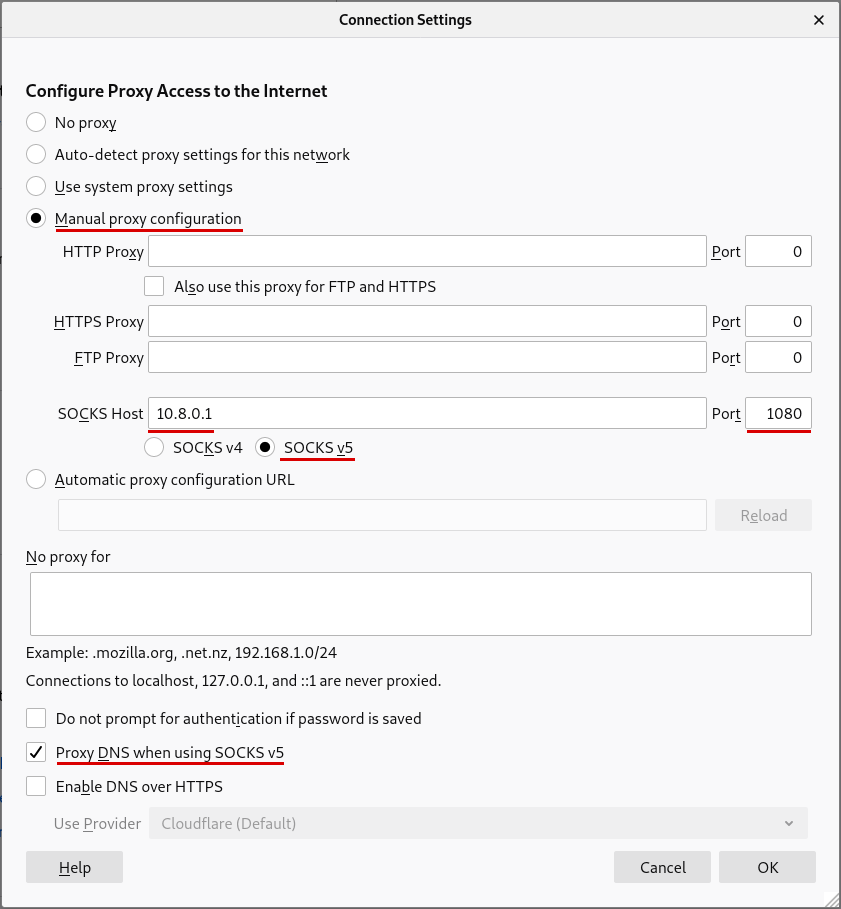
- Select Manual proxy configuration.
- Make sure that the HTTP Proxy and HTTPS Proxy fields are empty.
- In the SOCKS Host field, enter 10.64.0.1 and enter 1080 in the Port field.
- Click on SOCKS v5
- To prevent DNS leaks you can enable Proxy DNS when using SOCKS v5. However note that the DNS content blockers in the Mullvad app won't work if you enable this setting.
- Click on OK.
To disable SOCKS5, go to step #3 and change the setting to No proxy.
If you need to access web pages on other local devices such as your router, then use the text area which says No proxy for below the SOCKS settings. Enter your local network device addresses there, like for example https://192.168.1.1. Remember to also enable Local network sharing in the Mullvad app settings.
Firefox (for Android)
Note: If you will use Multihop with SOCKS5 (not just 10.64.0.1) then make sure to turn off Local network sharing in the Mullvad Android app settings.
Using FoxyProxy
- Open Firefox and tap on the menu button in the top right corner.
- Tap on Extensions. If you don't immediately get into the Extensions panel then tap on Manage extensions.
- Find FoxyProxy Standard in the Recommended section and tap on the + icon to add it. If it's not there then search for it and tap on "Add to Firefox".
- If you also plan to use the Mullvad proxy in private tabs then enable "Allow extension to run in private browsing". Then tap on Add and then OK.
- If you don't get back into the Extensions panel then tap on the menu button in the top right corner again and then tap on Extensions > FoxyProxy (settings button).
- If you are are already in the Extensions panel then scroll up to the Enabled section in Extensions and tap on FoxyProxy.
- Tap on Settings.
- Tap on Proxies.
- Tap on Add.
- Enter the following:
Title: Mullvad
Type: SOCKS5
Proxy DNS: enabled
Hostname: 10.64.0.1
Port: 1080 - Tap on Save.
- Tap on the menu button in the top right corner again.
- Tap on Extensions.
- Tap on FoxyProxy (not the settings icon).
- Tap on Mullvad (the proxy you added before) to enable it.
- Go back and enter https://mullvad.net/check in the address bar (make sure you are connected in the Mullvad app first).
- Tap on Using Mullvad VPN and make sure it says "SOCKS5 through WireGuard" in the IP Addresses.
Using about:config
Note: The about:config page was removed from Firefox on Android and it is currently only available in Firefox Nightly (the development version of Firefox).
- Enter about:config in the address bar and go there.
- In the Search field, enter proxy.
- Scroll down to network.proxy.socks and enter 10.64.0.1 below that.
- Scroll down to network.proxy.socks_port and enter 1080.
- Change the value for network.proxy.socks_remote_dns to true.
- Check that the value for network.proxy.socks_version is 5.
- Change network.proxy.type to 1.
To disable it, go to step #7 and change the setting to 5.
Chrome / Brave (for Windows)
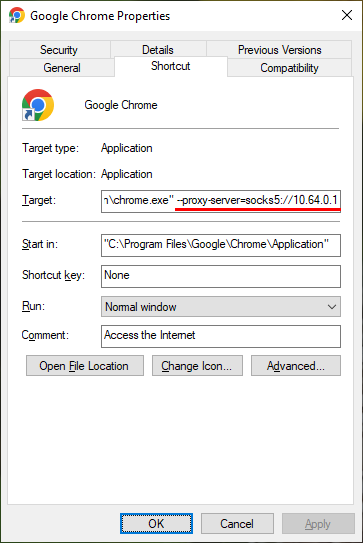
Right click on your desktop shortcut to Chrome or Brave and select Properties. Then add the following to the end of the Target (the field in the top) after the text that is already there. Make sure to first put one empty space after the current text and then add this:
--proxy-server=socks5://10.64.0.1
Then click on OK.
Edge (for Windows 10)
- Open the Settings app.
- Click on Network & Internet.
- Click on Proxy in the left side.
- Enable Use a proxy server and set the address to
socks=10.64.0.1and set the port to1080. - Click on Save.
Make sure that the settings are really saved by clicking on for example "Status" in the left side and then click on "Proxy" again. If you write http:// in front of the address it won't be saved. Windows adds that automatically.
Note: This will not enable the SOCKS proxy IPv6 address, only the IPv4 address.
Edge (for Windows 11)
- Open the Settings app.
- Click on Network & internet in the left side.
- Click on Proxy.
- Under "Use a proxy server", click on Set up.
- Enable it.
- Proxy IP address:
socks=10.64.0.1 - Port:
1080 - Click on Save.
Note: This will not enable the SOCKS proxy IPv6 address, only the IPv4 address.
Chromium / Chrome / Brave (for Linux)
This works with Chromium based browsers. Start it from a Terminal like this:
brave-browser --proxy-server=socks5://10.64.0.1
chromium-browser --proxy-server=socks5://10.64.0.1
Note: The --proxy-server flag applies to URL loads mainly. Some components of Chrome may bypass the proxy. To address this you can add this flag: --host-resolver-rules="MAP * ~NOTFOUND , EXCLUDE 10.64.0.1".
However the --host-resolver-rules flag is now unsupported, as the browser will tell you. To prevent WebRTC leaks that reveal your non-proxy Mullvad IP you can use this command instead:
chromium-browser --proxy-server=socks5://10.64.0.1 --force-webrtc-ip-handling-policy --webrtc-ip-handling-policy=disable_non_proxied_udp
Safari / Chrome / Edge / Brave (for macOS)
When using the Mullvad app you can enable the SOCKS5 proxy for Safari, Chrome, Edge and Brave. This only works when using the Mullvad app. Open the macOS System Settings > Network and click on the active (green) Ethernet or Wi-Fi connection. Then click on Details... > Proxies and enable "SOCKS proxy" and then enter the following.
Server: 10.64.0.1
Port: 1080
Then click on OK.
Testing the connection
Go to the Mullvad Connection Check to see if the web browser is using the proxy. Expand the top left box by clicking on it, and look for the words "SOCKS through".

Multihop with SOCKS5
All our WireGuard servers have two SOCKS5 proxies listening on them:
- The SOCKS5 proxy on 10.64.0.1 with port 1080 which is not reachable from other WireGuard servers.
- The SOCKS5 proxy on 10.124.0.x to 10.124.1.x with port 1080 which is reachable from other WireGuard servers. These IPs are unique for each WireGuard server. For instance, 10.124.0.4 belongs to nl-ams-wg-001 and 10.124.0.2 belongs to se-mma-wg-001.
You can also use the SOCKS5 proxies to multihop. To do so, you can configure your browser or other app to exit the traffic from a server that is different from the one you connected to.
For instance, if you are connected to se-mma-wg-001 and then want to exit via nl-ams-wg-001, you would configure your browser to use nl-ams-wg-socks5-001.relays.mullvad.net on port 1080 as your exit node.
There are three options for this:
- Use the Mullvad Browser Extension for Firefox to switch location easily.
- Use the Mullvad Browser which includes the Mullvad Browser extension.
- Set it up manually in your web browser. You can find the SOCKS hostnames on the WireGuard servers in the Servers list.
You can also test this in a terminal (in the following examples, we are connected to se-mma-wg-001):
Without SOCKS5 proxy
Note that the Mullvad VPN server will assign one of multiple possible exit IPs.
curl https://am.i.mullvad.net
141.98.255.133
With SOCKS5 proxy on the connected Mullvad VPN server
Note that the proxy has a different exit IP. Each proxy has only one exit IP.
curl https://ipv4.am.i.mullvad.net --socks5-hostname 10.64.0.1
193.138.218.221
With SOCKS5 proxy running on a different Mullvad VPN server
Note that you will get the exit IP from the proxy on the other Mullvad VPN server.
curl https://ipv4.am.i.mullvad.net --socks5-hostname nl1-wg.socks5.relays.mullvad.net
193.32.249.131
With SOCKS5 proxy - IPv6 exit IP
Each proxy also has one IPv6 exit IP.
curl https://ipv6.am.i.mullvad.net --socks5-hostname 10.64.0.1
2a03:1b20:1:f410::a01d
"WireGuard" is a registered trademark of Jason A. Donenfeld.