Introducing Multihop modes
We’ve updated the Multihop feature with different modes, to make it more flexible and easier to use.
This is currently available in the iOS app (2026.4) and coming soon to Android (2026.9) and later this year to the desktops (2026.6).
Multihop can be a great tool for adding an extra layer of security by routing your connection through multiple servers. This means you don’t have to rely on a single server, potentially helping to improve your privacy.
Multihop modes
Not all of our servers support every feature or setting in the app. This means that tweaking your settings can sometimes cause your connection to be blocked. This is why we’re introducing Multihop modes; When needed, Always, and Never. With the “When needed” mode giving you more flexibility to use the settings and features you want without inadvertently blocking your connection.
When needed
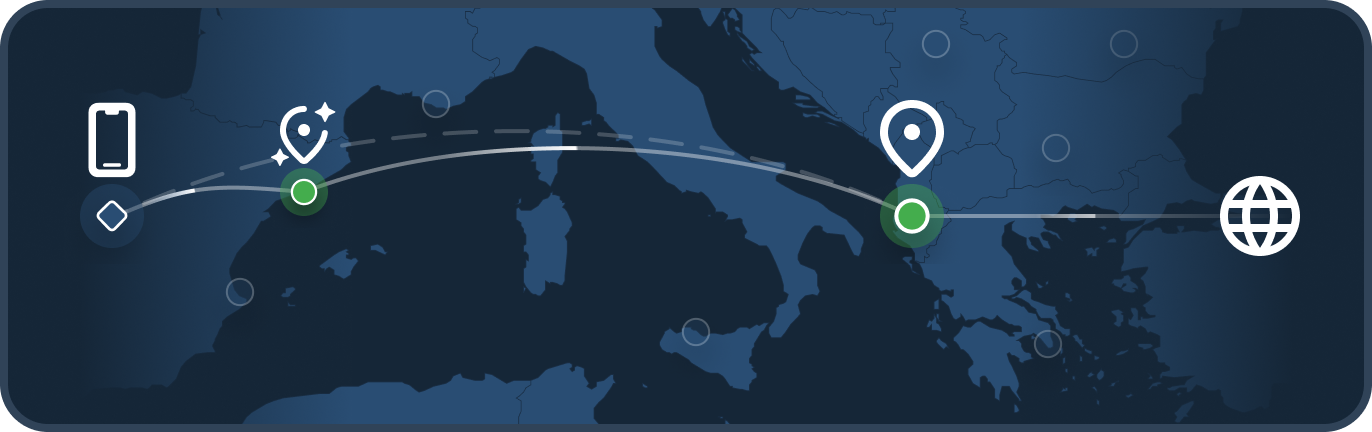
In this mode multihop is disabled, unless you select a setting or feature such as DAITA that is not available in your selected location.
In these situations the app will automatically multihop via a nearby compatible server and then exit through your selected location. This will be indicated by the  symbol.
Always
In this mode multihop is always enabled, your connection is always routed through two different servers.
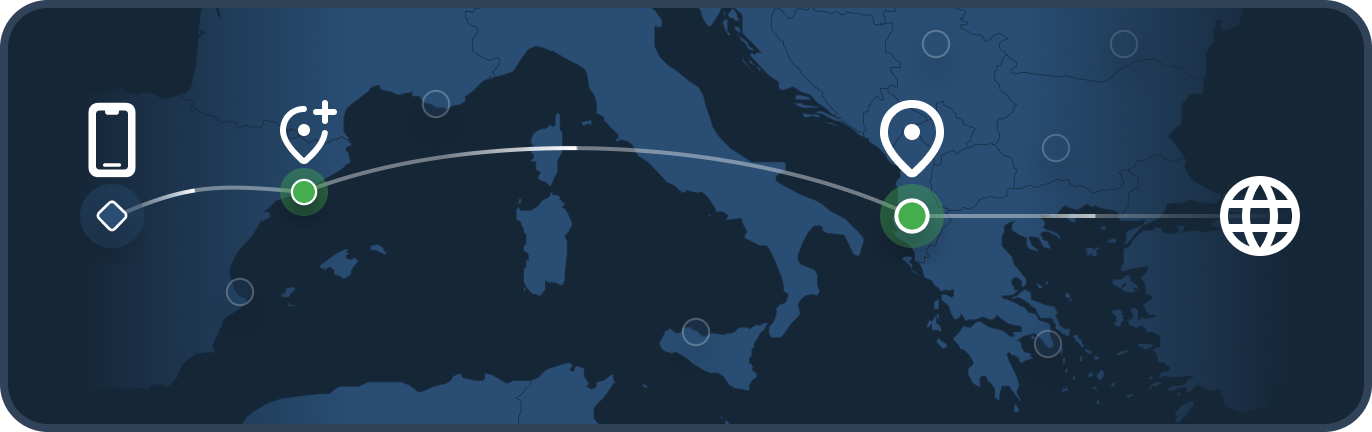
This is for the users that want the app to always multihop and also desire to have control over which server the app uses to multihop. Always multihopping can increase your anonymity, at the cost of some performance.
Automatic location
To make it easier for users that always want to multihop, but don’t necessarily want to control which entry server the app connects through, we’ve added an Automatic location. This allows the app to choose an optimal location, something close enough in distance but still supporting all of your enabled features.
Never
In this mode multihop is disabled, your connection is only routed through a single server.
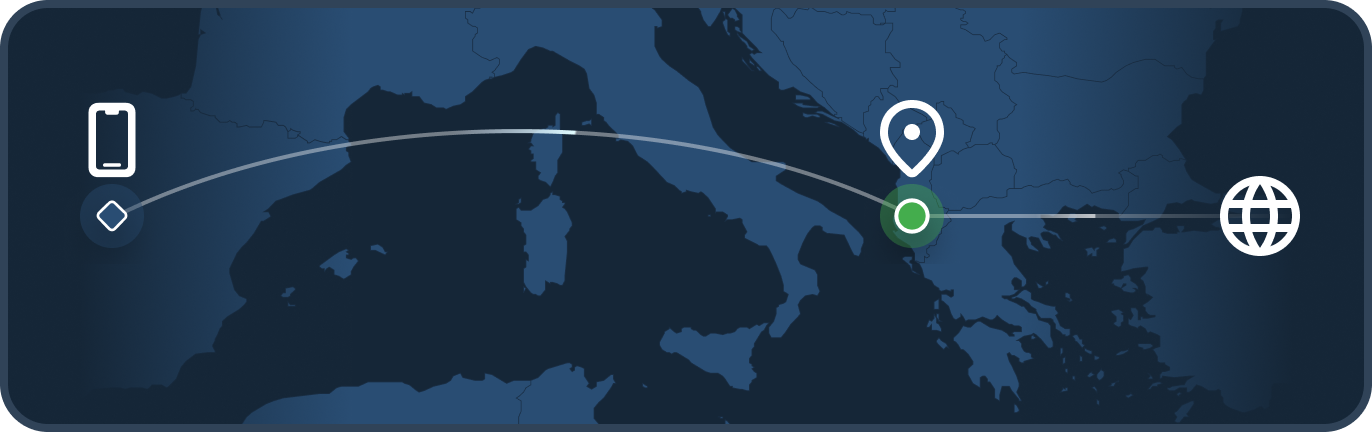
While this mode increases performance, it can decrease your anonymity and may limit the amount of selectable locations due to certain features only being available on certain servers, such as DAITA.
In the “Never” mode, your selected location must support all active settings in order to establish a connection.
What happens to your current settings?
When upgrading the app, you will be migrated to one of the new multihop modes based on your previous settings. You will be notified of this when first opening the app.
Multihop
If you were already using multihop before this update, your current settings will automatically map to the closest equivalent mode whenever possible. Some examples of migrations:
- Multihop: On, DAITA: On, Direct only: Off, Filters: Off → Multihop mode: Always, with the “Automatic” entry server
- Multihop: Off, DAITA: Off, Direct only: Off, Filters: Off → Multihop mode: When needed
- Multihop: On, DAITA: Off, Direct only: Off, Filters: Off → Multihop mode: Always
DAITA - Direct only
This setting has now been replaced by the new multihop modes, as a scalable solution to adding more features that help privacy and the overall user experience.