Install Mullvad app on Android
Mullvad app Android Mobile Installation
آخر تحديث:
This guide explains how to install and uninstall the Mullvad VPN app for Android users.
After installing the app proceed to the guide Using Mullvad VPN on Android.
What this guide covers
- Installation requirements
- Where to download and install
- Allowing Mullvad to run in the background
- Uninstall the app
Installation requirements
Your device needs to run Android 9 or newer.
Phones, tablets and Android TV.
The Mullvad app is available in the Google Play Store and other places. Read more below.
Amazon Fire TV
The Mullvad app works on Amazon Fire TV devices that run Android 9 and newer. Attempting to install it in an older version will fail with the error message "There was a problem parsing the package". If you don't know which version your Fire TV has then you can find it at the Amazon website.
The Mullvad app is not available in the Amazon Appstore. Instead you can download it using the following instructions.
Fire OS 8
- Open the Amazon Appstore and install the Downloader app.
- Open Settings (from the Fire TV home screen, scroll to the gear icon on the far right).
- Go to My Fire TV (or Device & Software).
- Open Developer Options. If it’s missing, open About, highlight the first item in the list (your device name) and then press the Select button on your remote 7 times quickly.
- Select Install Unknown Apps. You’ll see a list of apps that can request to install APKs.
- Enable it for the Downloader app.
- Open the Downloader app.
- Select Browser mode and to go to our website (https://mullvad.net/download/vpn/android) and click on "Download .apk".
- Select Install.
Chromebooks - ChromeOS
See our guide Mullvad on Android / Chromebook devices.
Where to download and install
You can get the app from Google Play, download the .apk file from our website/GitHub, or install it with the F-Droid app. We cover all methods below.
When upgrading from a previous version you must download it from the same place that you made the first installation, or you have to uninstall the currently installed version first. For example if you downloaded it from Google Play and want to upgrade to the latest .apk version.
Download on Google Play
- On your Android device, tap this link to open the Mullvad VPN app in the Google Play Store.
- Tap the Install button.
- Once the app has finished downloading, tap Open to launch it.
Download .apk file from our website
- On your Android device, go to our Download page and tap on Download .apk.
- Open the downloaded .apk file and follow the prompts to install the app.
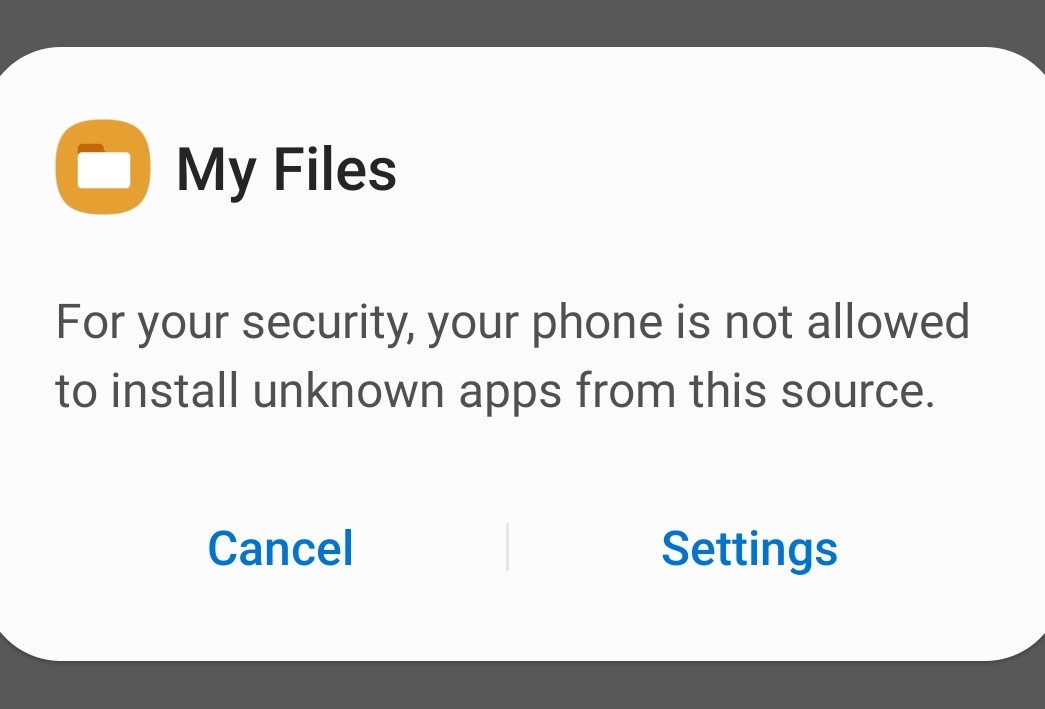
- If you receive a warning like the one below, tap Settings.
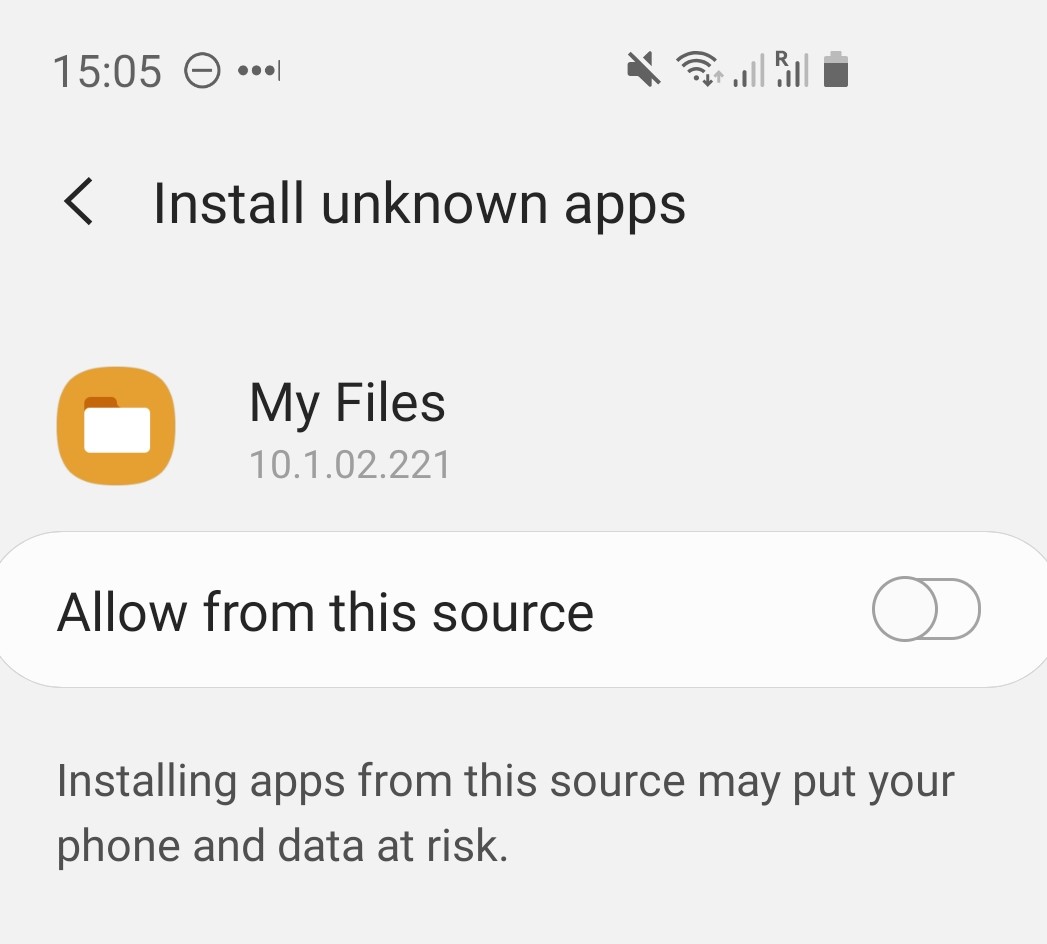
4. Enable Allow from this source, then tap the back button to resume installation.
5. Once the installation is complete, you can launch the app directly.
Download .apk with Obtainium
You can use Obtainium to download Mullvad updates directly from our GitHub.
- On your Android device, go to the Obtainium website and tap on Download Universal APK.
- Open the downloaded .apk and tap on Install. You may receive an error message saying that your device is not allowed to install unknown apps from this source. In that case tap on Settings in the dialog box to display the Android app settings and enable Allow from this source. Then go back and tap on Install again.
- Open the Obtainium app and tap on + Add.
- In the Search field, enter mullvad and tap on the 🔍 search icon.
- In the Select source window, keep GitHub checked only.
- Tap on Select 1.
- Select the first option: mullvad/mullvadvpn-app.
- Tap on Pick.
- If you want to include beta versions then enable Include prereleases.
- Tap on the + icon in the top right.
- Tap on Install in the bottom left corner and then Install.
In the Apps section in Obtainium you can tap on the date next to Mullvad to see the changelog.
Verifying the .apk
While not mandatory, it is possible to verify the authenticity of the .apk.
The .apk on GitHub and our website is signed with a certificate that has the following SHA-256 fingerprint:
7B:E2:19:30:C3:B4:D7:39:06:B0:89:30:45:0A:1D:3A:FB:D2:2C:98:D9:D8:E9:87:DF:8C:1F:BC:2D:0C:90:BB
Double-check that the fingerprint above is the same as in our Android README on GitHub.
You can see the fingerprint as the "Certificate Hash" in Obtainium, if you followed the instructions above to install the Mullvad app from there.
It is also possible to check it with AppVerifier if you have installed that, or using the "apksigner" developer tool.
Note that if you get the app from F-Droid or Google Play it will have a different fingerprint.
Each .apk is also signed with GPG and the GPG signature is available on our Downloads page.
Download with F-Droid
F-Droid is a community-maintained software repository for Android, similar to the Google Play store. It contains free and open source apps. Our app is built from source by F-Droid.
- On your Android device, go to the F-Droid website and tap on Download F-Droid.
- Open the downloaded .apk and tap on Install. You may receive an error message saying that your device is not allowed to install unknown apps from this source. In that case tap on Settings in the dialog box to display the Android app settings and enable Allow from this source. Then go back and tap on Install again.
- Open the F-Droid app and tap on the green search button.
- Search for "mullvad" to find our app, tap on it and then tap on Install.
- You may again receive an error message saying that your device is not allowed to install unknown apps from this source. In that case tap on Settings in the dialog box to display the Android app settings and enable Allow from this source. Then go back and tap on Install for the Mullvad VPN app again.
- Tap on Open to launch the app or find it in the Android app drawer or on the homescreen.
Allowing Mullvad to run in the background
Android from some device manufacturers like Samsung and Motorola is prone to disconnecting Mullvad when you lock the phone. To learn how to prevent this, read our Using Mullvad VPN on Android guide.
Uninstall the app
Uninstall in the Google Play Store
- Open the Play Store app.
- Tap the menu icon (☰).
- Tap My apps & games.
- Under the list of Installed apps, find and tap Mullvad VPN.
- Tap on Uninstall and confirm by tapping OK.
Uninstall in the device settings
- Open your device's Settings.
- Scroll down to Apps and open it.
- Find Mullvad VPN and tap to open it
- Tap on Uninstall.
Uninstall in F-Droid
- Open the F-Droid app.
- Tap on Uninstall.